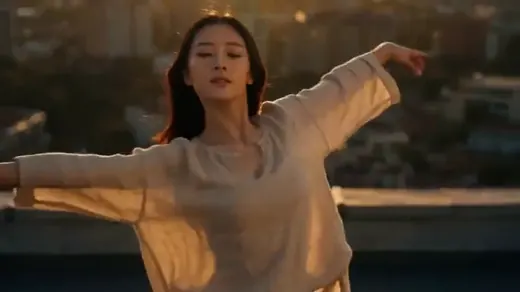
 Before
Make video vertical by extending the scene with AI
Adapt a landscape clip to 9:16 with Wan 2.7. AI extends the scene and can pull the camera back to fit the person into the frame while preserving the original audio.
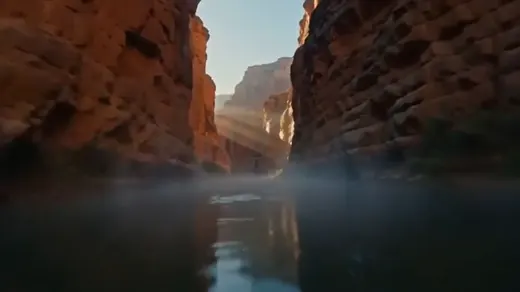
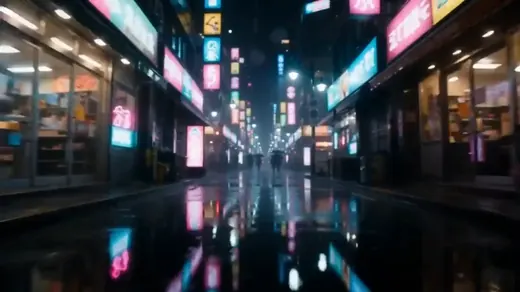
Examples
How it works
- 1Upload your video
MP4 or MOV — the price for your clip appears on the button right away.
- 2Press “Process video”
Wan 2.7 Edit is already set up — just pick the options you need.
- 3Download the result
Processing takes a few minutes; the video is saved to your library.
How to make video vertical online
Cropping a landscape clip can remove hands, objects or important surroundings. Neuromia uses Wan 2.7 to adapt a video to a selected aspect ratio by generating additional scene content around its edges. It can also pull the camera back so a person fits fully within the new frame.
Upload an MP4 or MOV lasting 2–10 seconds, choose the aspect ratio and resolution, and add an optional request. The total price appears on the button after upload. Your finished video is saved in your personal library for download. Because this creates a generated version of the scene, watch the whole result before publishing it.
Choose 9:16 or another aspect ratio
A 9:16 vertical video is substantially taller than it is wide, making it useful for viewing on a phone held upright. Other available ratios are 16:9, 1:1, 4:3 and 3:4. Choose a wide, square or differently proportioned frame according to the layout you need.
Aspect ratio and resolution describe different things. The ratio sets the shape of the image, while 720p or 1080p specifies the selected output resolution. Start with the intended placement, then check the composition. A full-height portrait layout may call for 9:16, while a square post may suit 1:1. Leave room for the subject and any captions you plan to add later.
Reuse a clip for Reels, Shorts and TikTok
A vertical version can serve as the basis for Reels, Shorts, TikTok, VK Clips or stories. Use a successful short moment you already have: a spoken introduction, product demonstration, movement or atmospheric shot. This gives an existing clip another use without requiring you to record the same scene again.
Before posting, check each platform's current requirements and preview the video in its interface. Buttons and captions can cover part of the picture. Adapt titles, covers and other finishing elements separately where needed. This tool changes the scene's proportions; it does not automatically prepare every publishing variation for different apps.
Scene expansion, cropping and blurred backgrounds
Cropping retains a selected part of the original picture. It works well when everything important already fits within a narrower frame. A blurred background keeps the landscape clip inside a portrait canvas and fills the remaining area decoratively, without extending the actual scene.
Generative adaptation adds plausible surroundings and can change the apparent camera distance. You can make video vertical with a more continuous composition, but the new areas are not a recording of what really happened outside the source frame. If every element must remain an exact documentary record, consider whether this kind of interpretation suits your purpose.
Choose a clip with a readable scene
For a first attempt, use a clear subject, steady camera and moderate movement. A person near the center is easier to evaluate after reframing than someone constantly entering and leaving at the edge. Readable surroundings also make it easier to judge whether the generated extension looks consistent with the source.
Inspect these cases especially carefully:
- Fast camera turns and sudden movement.
- Several people overlapping one another.
- Hands or objects crossing the original frame boundary.
- Mirrors, reflections, fine patterns and lettering.
- Cuts between different shots within a single clip.
These are reasons for closer review rather than a promise that processing will fail. If the result is difficult to use, a calmer excerpt may provide a clearer starting point.
Add a focused request for the composition
An optional request lets you describe what matters in the adapted frame. For example, ask for “the full person in frame, with more space above the head” or “keep the object centered and extend the simple background.” One clear priority is easier to assess than a collection of conflicting instructions.
If you want to convert landscape video to portrait without losing someone's gestures, mention that the hands should remain visible. The request guides generation but does not guarantee exact execution. A pulled-back view and previously unseen parts of the body or surroundings are generated content, so inspect them rather than assuming they were recovered from the recording.
Prepare videos longer than 10 seconds
The tool accepts clips lasting 2–10 seconds. Cut a longer recording into suitable excerpts in a video editor before uploading. Choose meaningful boundaries such as a completed gesture, short phrase or separate shot instead of cutting arbitrarily in the middle of an action. Each excerpt is uploaded and processed separately.
You can join the processed clips in an editor afterwards. Separate generations may extend the background differently or position the person differently, so matching settings do not guarantee an invisible join. Watch transitions, check spoken continuity and adjust edit points if needed. Automatic splitting and assembly of longer videos are not part of this tool.
Keep the original audio and inspect the motion
The original audio is preserved, so changing the aspect ratio does not require you to add speech or the soundtrack again. Still, review sound and picture together after downloading. If you join several processed excerpts, check for clipped words or awkward pauses introduced by your edit points.
Watch the image in motion rather than judging it from one successful frame. Small details can differ from the source or vary across frames. Inspect faces, fingers, clothing outlines, objects and background lines. For product footage, check the product shape, logos and labels separately. A visually appealing clip still needs to represent the subject appropriately for its intended use.
Check the price and save your adapted clip
To make video vertical, processing costs 17.6 credits per second at 720p or 26.4 credits per second at 1080p. A five-second clip therefore costs 88 credits at 720p or 132 credits at 1080p. Check your file's total on the button after upload and parameter selection, before starting processing.
There is no subscription; pay as you go. Use Neuromia on a phone or computer without installing software. Credits are charged only for a completed result and returned if processing fails. Download the finished version from your personal library and keep the source separately. It remains useful when another placement calls for different proportions or a different excerpt.