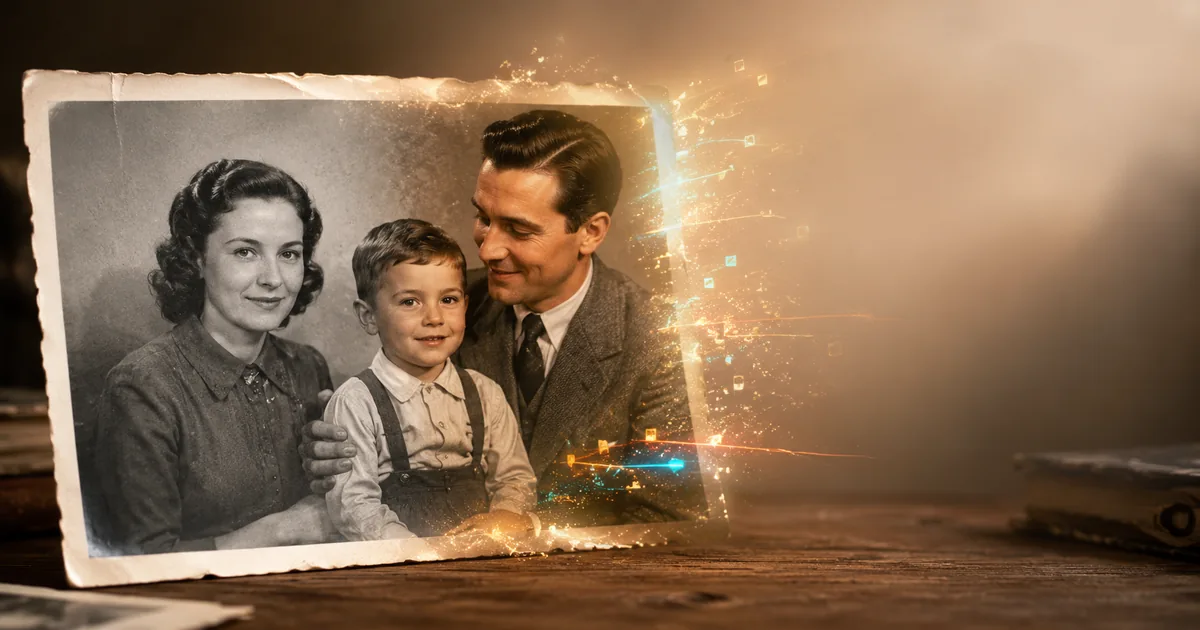
How to Bring an Old Family Photo to Life with AI: Complete 2026 Guide
A step-by-step guide to turning an old family photo into a living video: AI adds facial expressions, blinking, and motion while preserving the face. No VPN, no editing software, no complicated tools.
Every home has an album of photos that get pulled out once every few years: your grandmother in her youth, your parents on their wedding day, black-and-white childhood snapshots. For a long time, the only thing you could do with them was scan and store them. In 2026 there is a far more interesting option: bring a family photo to life with AI and watch the person in the picture blink, smile, and turn their head.
It sounds like magic, but technically it is ordinary video generation from a single image: the neural network analyzes the face and background, "imagines" the in-between frames, and assembles a short clip while preserving the person's features. No editing, masks, or video software — the whole process takes a couple of minutes in your browser.
In this guide we'll walk through the entire journey: how to prepare an old photo, what to write in the motion description, which settings to choose, and how much it costs. And if you'd rather try it right away — here's the photo animation page, where everything happens in a single window.
What "bringing a photo to life" means and how it works
Photo animation is video generation from a single frame (image-to-video). You upload a picture and briefly describe what should happen: "a slight smile, blinking, barely noticeable breathing." The AI adds natural facial expressions and movement without changing the face or distorting the proportions.
The key difference from regular video generation: here the source photo is not a loose "reference for inspiration" but the exact foundation of the frame. Good models preserve skin texture, hairstyle, clothing, and background, and the video is created in the proportions of the original photo — the frame is not cropped to a fixed format.
For animating family photos, the best choice is a model that handles faces carefully — for example, Hailuo, which Neuromia uses as the primary model for this task. If you're curious how text-to-video and image-to-video generation works in general, we have a separate deep dive — how to make a video from a photo with AI.
Step 1. Prepare the photograph
The source image determines 80% of the result. The requirements are simple: JPG, PNG, or WebP, up to 20 MB, at least 300 pixels on the shorter side. But there are nuances that strongly affect the outcome:
- The face must be clearly visible. A portrait or waist-up shot comes to life noticeably better than a group photo where the faces are the size of a coin.
- The simpler the background, the more natural the motion. A plain wall or a blurred backdrop works better than a busy crowd.
- Scan old photos instead of photographing them. A phone shot of an album page adds glare and perspective distortion. If you don't have a scanner, shoot in diffused daylight, perfectly perpendicular to the photo, with no flash.
- Black-and-white and yellowed photos animate just fine. The AI handles archival shots carefully — there's no need to colorize them first.
- Heavily damaged photos are best restored first. Cracks and scratches across a face can "melt" once motion is added. You can remove them in the image editor — upload the scan and ask the AI to clean up the defects.
Step 2. Describe the motion
This is the only creative part of the process. In the description field (up to 2,000 characters), write what should happen in the frame. One simple rule applies: the smaller and gentler the motion, the more natural the result.
Ready-made formulas for family photos:
- The portrait classic: "a slight smile, blinking, and barely noticeable breathing"
- For an archival shot: "the person blinks slowly and smiles slightly, gentle hair movement, static camera"
- With camera movement: "the camera slowly pushes in, the person looks into the lens and smiles softly"
- For a photo of two: "both people blink and smile at each other, a gentle sway"
- Atmosphere: "soft light, a light breeze stirs the hair, a calm expression"
What not to write: "the person stands up and walks away," "turns their back," "starts dancing." Sharp, large movements are the main cause of distortions: the AI is forced to invent things that aren't in the photo.
Step 3. Choose quality and duration
The animation page has three settings:
- Quality: Standard is faster and cheaper — more than enough for social media and messengers. Pro delivers maximum detail — worth picking for a treasured photo or a big screen.
- Resolution: 768p or 1080p.
- Duration: 6 or 10 seconds. For a "living portrait," six seconds is plenty — these clips look like a photograph that suddenly came alive.
Pricing is transparent and shown before you start: the basic option (Standard, 768p, 6 seconds) costs about 27–33 ₽, and Pro in the same format is about 41 ₽. You pay per generation with credits from a single balance — no subscription, you only pay for what you actually generate. New users receive a free welcome bonus, so your first clip can be made at no cost.
Step 4. Run the generation and download the result
Click "Animate photo" — the clip will be ready in about 1–2 minutes. The result is saved to your library, where you can download it as an MP4 and send it to the family chat, post it to your stories, or drop it into a birthday greeting.
If the motion didn't turn out the way you hoped — that's normal; generation is partly a lottery. Simplify the description (remove extra actions, keep just "a slight smile and blinking") and run it again: the second or third attempt is often noticeably better than the first.
Ideas: what to make from an animated photo
- A video greeting. Animate a photo of the birthday person and put the clip at the start of your message — it lands harder than any greeting card.
- A gift for your parents or grandmother. Animated photos from their youth are the kind of gift that makes people cry (in the good way).
- A family archive. Clips made from archival photos add up to a living family chronicle — far more engaging for kids and grandkids than a static album.
- Remembering loved ones. A delicate but common use case: a few seconds of a familiar expression mean a great deal.
- Social media content. Animated retro photos consistently pull in reactions on Reels, Shorts, and TikTok — the "photo that suddenly starts breathing" format is a proven hook.
Which model to use: Hailuo, Veo, or Kling
Animation is image-to-video, and several models can do it. The difference shows up most clearly on family photos.
Hailuo by MiniMax is the best pick for portraits. It handles faces more carefully than the rest: blinking, a faint smile, and micro-expressions look alive, and the features don't drift between frames. If you're animating a close-up face, start here. You don't need a MiniMax account or a foreign card — Hailuo runs right in the browser.
Veo 3 by Google is for when the scene matters as much as the face: camera movement, background, light. A good choice for a full-length shot or an interior where you want something cinematic rather than just a living gaze. See Veo.
Kling is a sensible compromise between price and motion quality, and it handles full-body shots and objects confidently.
All three draw from the same credit balance, so comparing them on your own photo costs less than you'd think: animate the same shot twice and keep whichever version looks more like the person you remember.
Animating a photo of an ancestor without the uncanny result
A photo of a great-grandmother or someone you've lost is the most common — and the most delicate — scenario. One rule does most of the work here: the less the model invents, the stronger the recognition.
- Ask for minimal motion. "Blinks slowly, a barely visible smile, calm breathing" produces a far more lifelike result than an elaborate scene. A broad smile on someone who wasn't smiling in the photo almost always reads as a stranger's.
- Don't let the model invent the face. If the shot is damaged, faded, or the face is small, restore and upscale it first, then animate. From a blurry source the model will fill in features its own way and the likeness disappears.
- Crop down to one person. In a group photo the expression gets smeared across every face at once.
- Keep it black and white if in doubt. Colorization sometimes produces an unnatural skin tone, and combined with motion that's exactly what creates the uncanny-valley effect. A black-and-white frame with a living gaze feels warmer.
- Make two or three versions and show the family. "Looks like them / doesn't" is best judged by people who remember the person in life.
The legal side is simple: upload photos you hold the rights to — a family archive covers that. The result stays an artistic animation of the original frame, not a "restoration" of a person.
How this differs from Deep Nostalgia and MyHeritage
Services like Deep Nostalgia made the format popular, but they run on preset motion templates: the face is animated with pre-recorded expressions, and you can't choose the scenario. That's where the familiar sense that every animated portrait moves the same way comes from.
Here you describe the motion yourself, in plain language, so the shot can be tailored to a specific person: a restrained nod, a look into the camera, a slight half-smile. On top of that, animation is billed per generation with no subscription, and it works from Russia without a VPN or a foreign card.
Common mistakes
- Photographing an album page at an angle. Glare and perspective ruin the geometry of the face. Scan the photo or shoot it straight on.
- Too many actions in the description. "Smiles, waves, camera orbits around" is a sure path to artifacts. Stick to one or two gentle movements.
- A group photo with tiny faces. It will animate, but the expressions will come out smeared. Better to crop the photo down to one or two people.
- Expecting perfection on the first try. Generate 2–3 versions with different descriptions and pick the best one — it still costs less than a cup of coffee.
FAQ
Can I animate a black-and-white or very old photo?
Yes. The AI works with both archival and black-and-white photos — motion is added without any prior colorization. The main thing is that the face is recognizable and not obscured by damage.
How much does it cost to animate a photo?
A basic clip (Standard, 768p, 6 seconds) is about 27–33 ₽; maximum Pro quality starts at around 41 ₽. The exact price is shown before you launch the generation. New users get a free welcome bonus, so you can try it for free.
Can I animate a photo for free?
Your first generations are covered by the welcome bonus you get at sign-up. After that you pay per generation, with no subscription — you can top up your balance with a Russian card or via SBP; see credit packs on the pricing page. If you also pay for foreign services, see the breakdown of ways to pay for AI from Russia.
Do I need a VPN or a foreign card?
No. Everything runs in your browser from Russia, no VPN required, and you can pay with a Russian bank card.
What if there are several people in the photo?
The clip will still generate, but the larger the faces, the more natural the expressions. For a group shot, describe a shared gentle motion ("everyone smiles slightly and blinks") or crop the photo down to 1–2 people.
Where is the finished video saved?
To your library on Neuromia — from there you can download it as an MP4 in the proportions of the original photo and use it anywhere, from the family chat to Reels.
Bringing a family photo to life is one of those rare cases where AI does something genuinely heartwarming. Try it on a single photo from your album: upload a photo and describe the motion — two minutes later you'll have a living frame no one else in the family has.
How do I animate a photo with MiniMax from Russia?
Through Neuromia: MiniMax's Hailuo model is available in the "Animate a photo" section — all you need is a browser. No VPN, foreign number, or foreign card; you pay in credits from an ordinary Russian card, and there's a welcome bonus to start with.
Can I animate a photo of a relative who has passed away?
Yes, and it's one of the most common scenarios. There are no technical restrictions — the approach matters more: ask for minimal motion, use the sharpest source you have, and show the result to people who remember the person so you can pick the closest version.