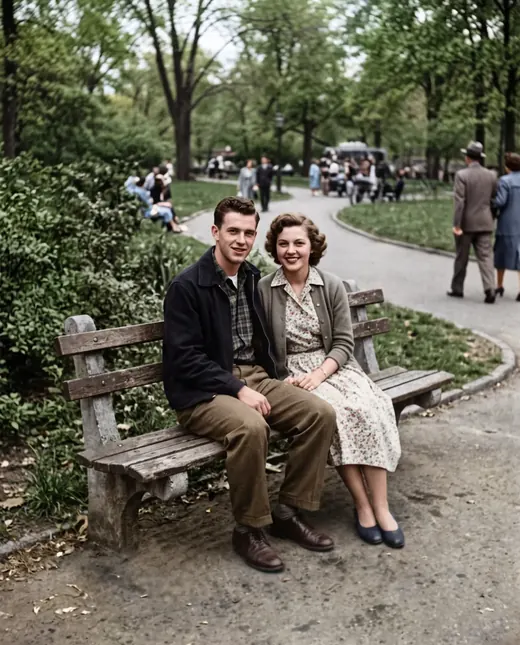
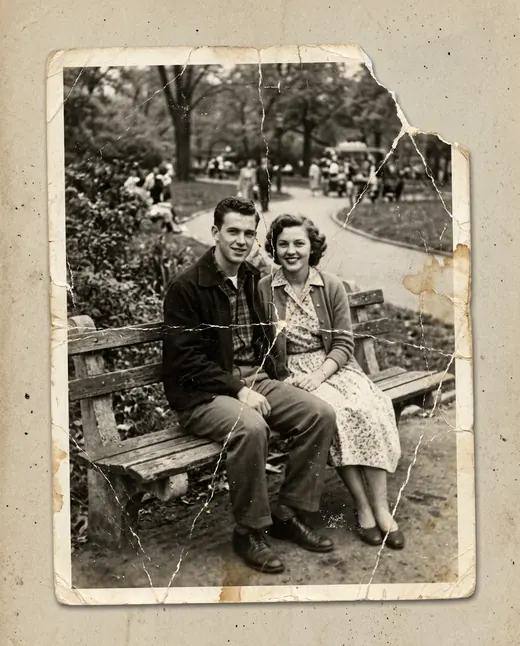
 Result
 Before
Remove background from photos and download a transparent PNG
Turn a photo into a transparent PNG in seconds. Upload a JPG, PNG or WEBP image, and Recraft will separate the main subject from its surroundings.
Examples
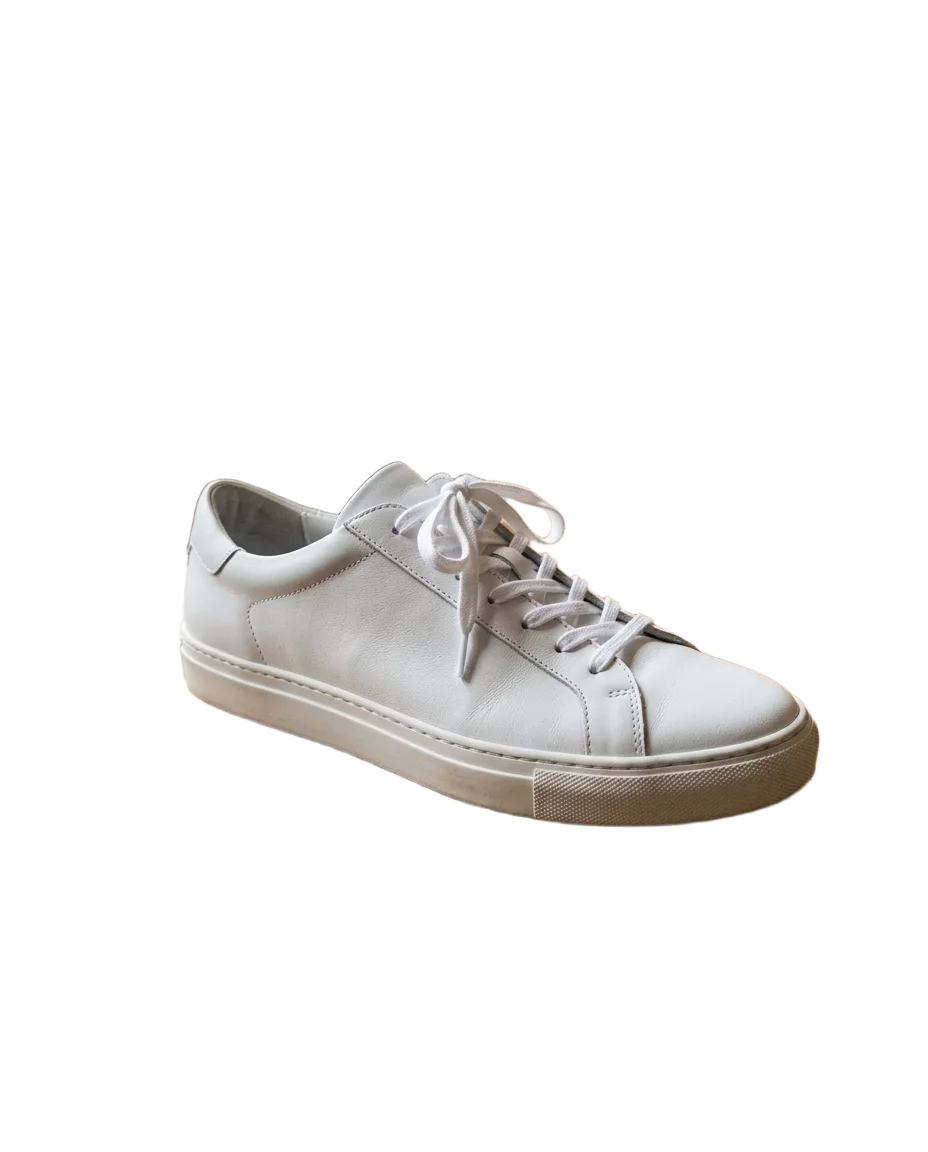
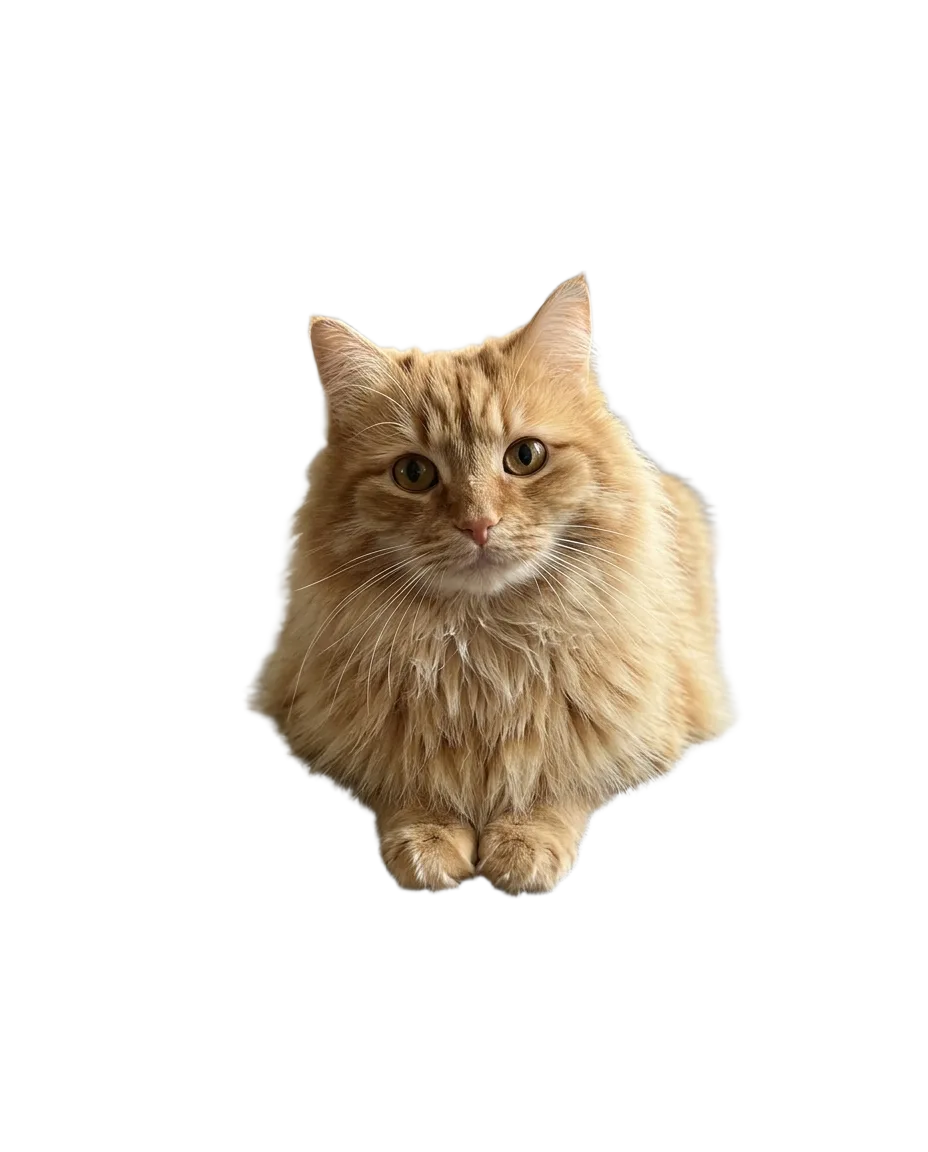

How it works
- 1Upload your photo
Large photos are resized automatically — no editor needed.
- 2Press “Process photo”
Recraft Remove Background is already set up — just pick the options you need.
- 3Download the result
The result is ready in seconds and saved to your library.
How to remove background from a photo online
Upload your image, start processing and download the finished PNG. Recraft separates the main subject from its surroundings, leaving a transparent area you can place over another design. Your result is also saved in your personal library, so you can return to it when you need the cutout for another project.
Supported inputs are JPG, PNG and WEBP, with a minimum of 256 pixels on each side. Large images are automatically reduced to 4096 pixels. The tool processes one photo at a time; batch processing is not available. Use it in a browser on your phone or computer without installing software.
Prepare product images for marketplace listings
A transparent product image is a useful starting point for a listing. Remove a distracting table, wall or room, then place the cutout on a white or colored background in an editor. You can reuse the same object in a product card, a comparison layout or a promotional banner without repeating the cutout work.
Check the current image requirements for your marketplace and category before publishing. A clean background alone does not ensure a compliant listing. Inspect packaging edges, handles, straps and gaps between parts. Glass, reflective surfaces and translucent materials can be harder to separate accurately from their original surroundings.
Create portraits for résumés and document layouts
To remove the background from a portrait, choose a clear, evenly lit photo with the head and shoulders visible. Add the required background in an editor after downloading the PNG. For a résumé, this can simplify a busy home setting and make a suitable portrait easier to use in a restrained page design.
For official documents, treat the cutout as an intermediate file. You still need to check the receiving organization’s rules for background, head position, cropping and image manipulation. Background removal does not guarantee that a picture will be accepted as an official document photo.
Make avatars, stickers, slides and collages
Place a portrait over a solid color for an avatar, or use a pet cutout as the basis for a sticker. Add outlines, captions and frames in your editor. If you plan to upload the result to a messaging app, check its file and size requirements: a transparent PNG is a source image, not a finished sticker pack.
In presentations, transparency lets a subject sit directly on the slide without the original rectangular background. For a collage, process each source separately and arrange the cutouts together. Matching their scale and lighting helps the composition feel consistent, especially when the photos were taken in different places.
Remove white, black and solid-color backgrounds
A plain background can be removed too, whether it is a white wall, black backdrop or colored sheet. The output is transparency, not an automatically selected replacement color. To get a white product background or a colored promotional layout, place a new layer beneath the PNG in an editor.
Check the edge against both light and dark backgrounds. A dark layer can reveal a pale halo, while a light layer makes dark remnants easier to spot. White objects against white backgrounds and dark objects against black backgrounds are more difficult because the boundary is less visible in the source photo.
Choose a source with a clear outline
A stronger source makes delicate edges easier to interpret. Before uploading, look for these qualities:
- The whole subject is visible rather than cut off by the frame.
- The subject stands out from the background in color or brightness.
- Lighting is reasonably even, with detail visible in shadowed areas.
- The image is sharp rather than blurred by movement.
- Hair, fur and small parts remain visible when you zoom in.
Transparent objects carry some of the background color through them, while reflective ones show their surroundings in highlights. These areas may need additional editing. Cast shadows can also be interpreted differently from what you intended, so compare the cutout with the original if a shadow matters to the final layout.
What “without losing quality” means here
To remove background without losing quality, start with the clearest available original and inspect the result before using it. Soft edges, individual hairs against a busy wall and sheer fabric can be difficult to separate precisely. PNG supports transparency, but that does not guarantee a perfect outline at every point.
Large uploads are reduced to 4096 pixels, so unchanged source resolution is not guaranteed. For large layouts or print, check the downloaded file’s dimensions and view it at a useful scale. If an important detail disappears, try a source with better contrast or restore that area manually in an editor.
Automatic cutouts and manual masking
Automatic processing is useful when you want to move quickly from a photo to a layout. It handles the initial separation without requiring you to trace every edge. However, the model has to interpret which parts belong to the subject, and complex boundaries can still lead to mistakes.
Manual masking gives you more control over specific details, such as a thin chain, a gap between parts or a shadow you want to retain. A practical workflow is to remove background with AI, inspect the PNG and adjust only the areas that need attention. A straightforward photo may require no further work, while a complicated one may benefit from careful cleanup.
Use your PNG in designs and print projects
Place the finished PNG on a new background or add it to a presentation, collage or merchandise design. For clothing and other printed products, confirm the required dimensions and file preparation with your printer. Keep a PNG working copy: JPEG does not preserve transparency, so choose a background before exporting to that format.
Processing costs 1.1 credits per photo. Try it with sign-up bonus credits: the 10 credits you receive cover nine photos. There is no subscription; pay as you go. Credits are charged only for a completed result and returned if processing fails. Upload your own photos or photos of people with their consent. Images are used only for processing.