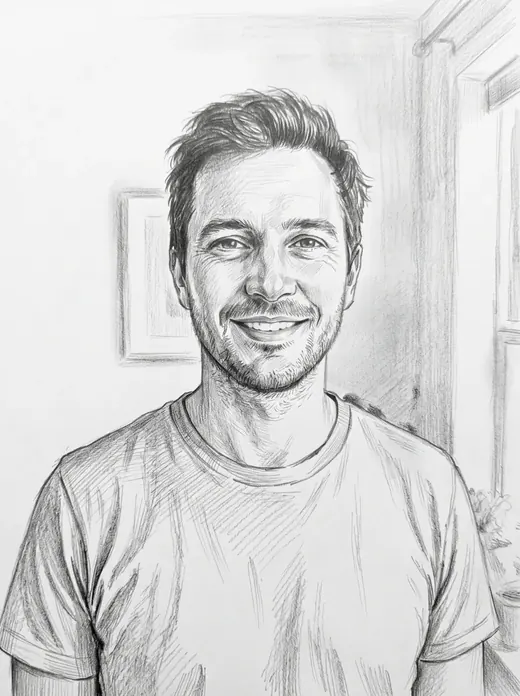
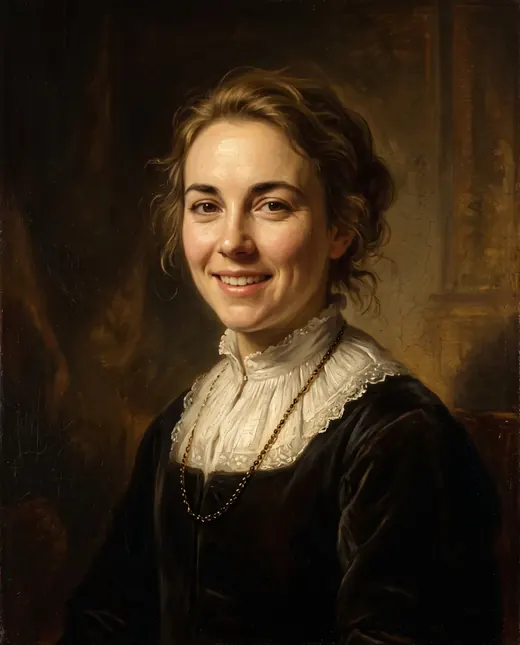
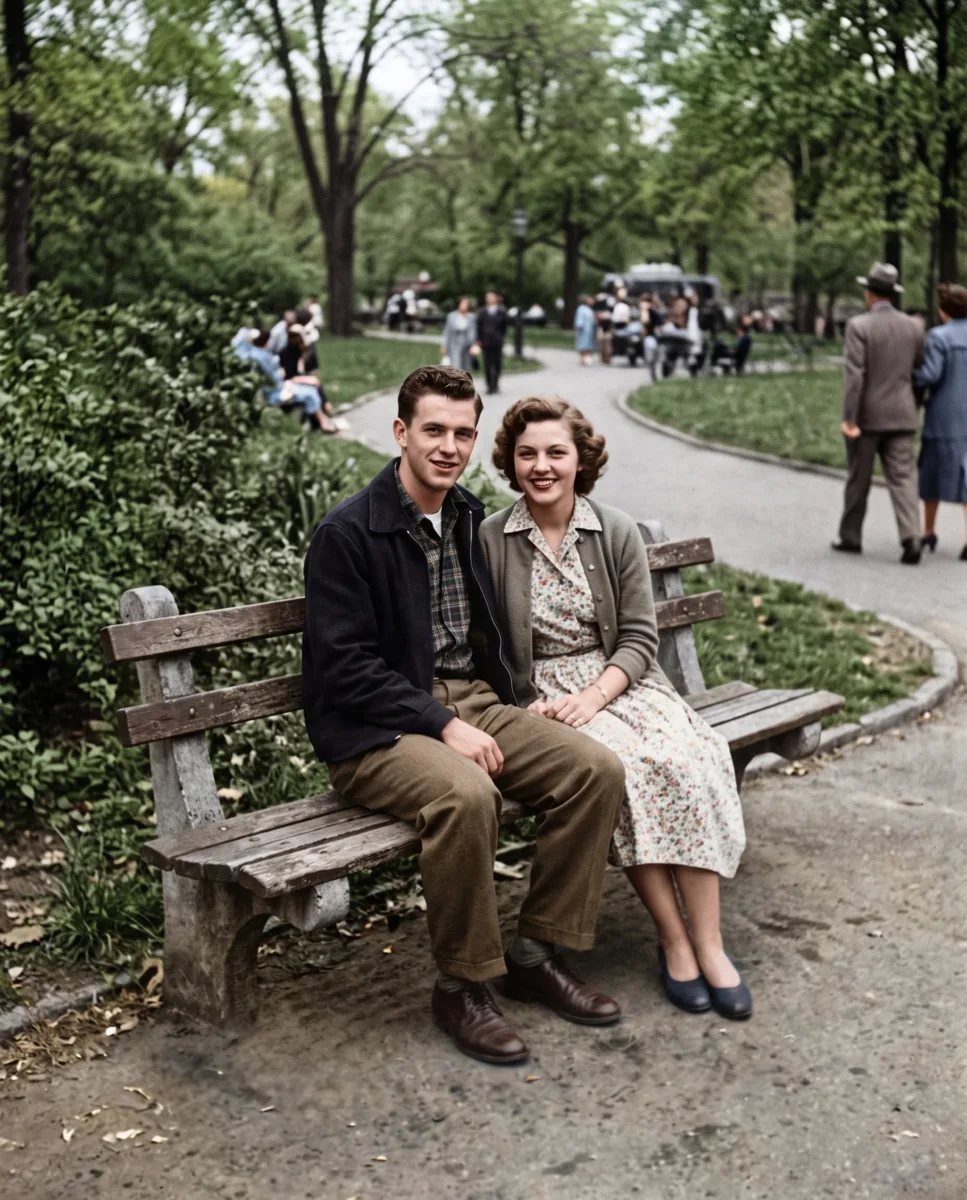
 Result
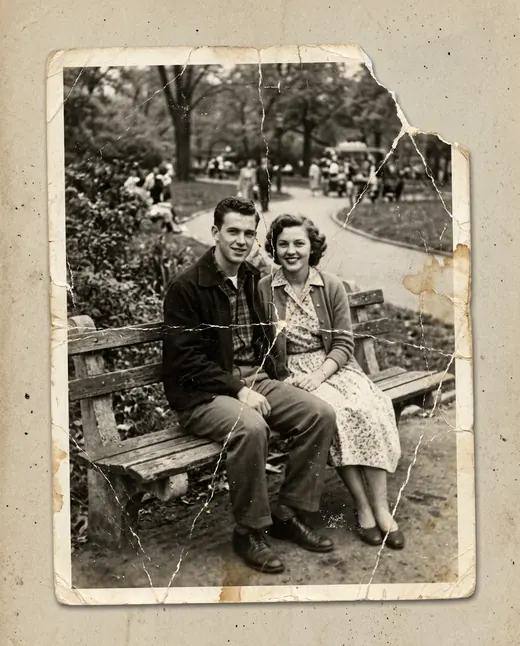 Before
Photo restoration for old and damaged family pictures
Repair cracks, scratches, stains and fading in an old photograph. Choose restoration alone or restoration with colorization, then download the result for your family archive or a print.
Examples
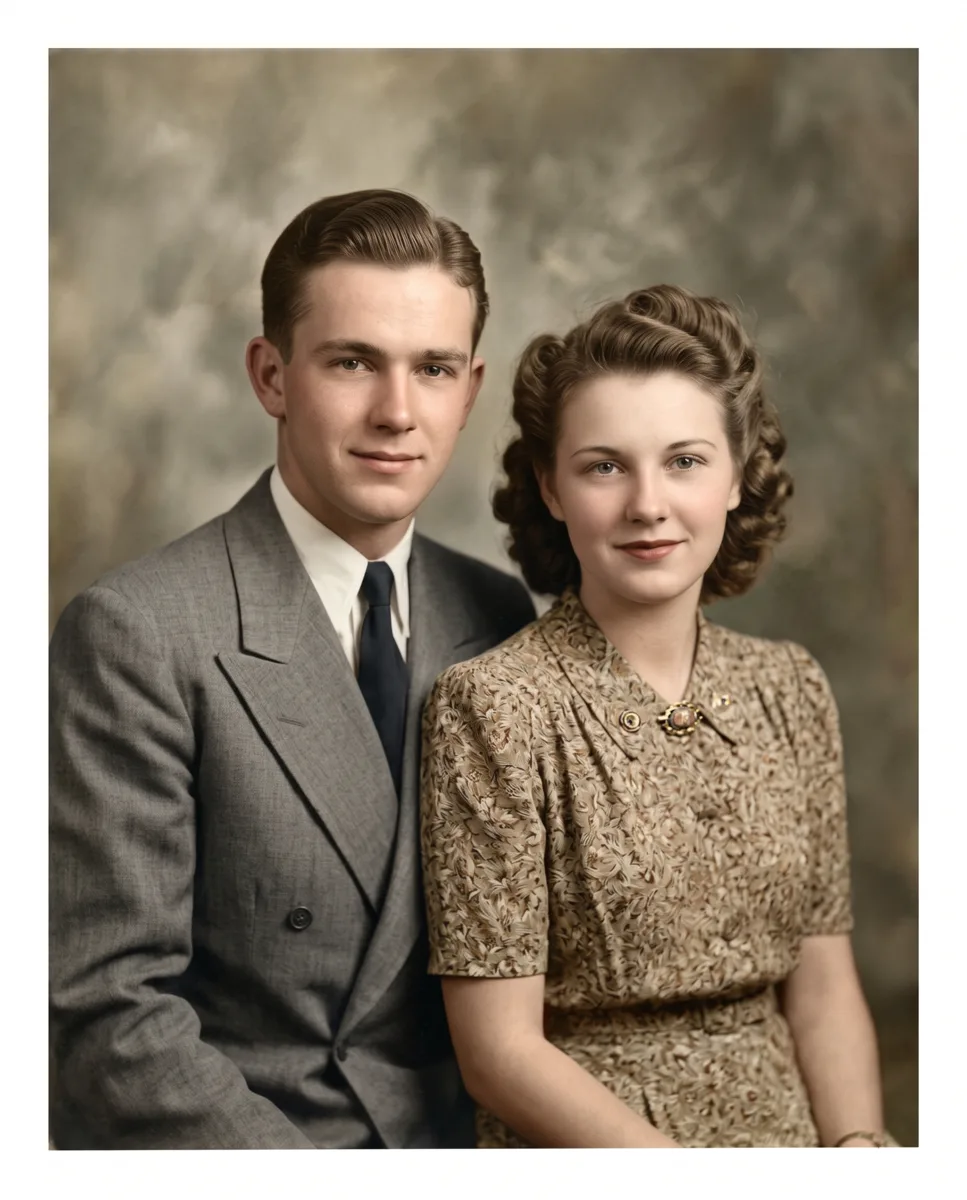
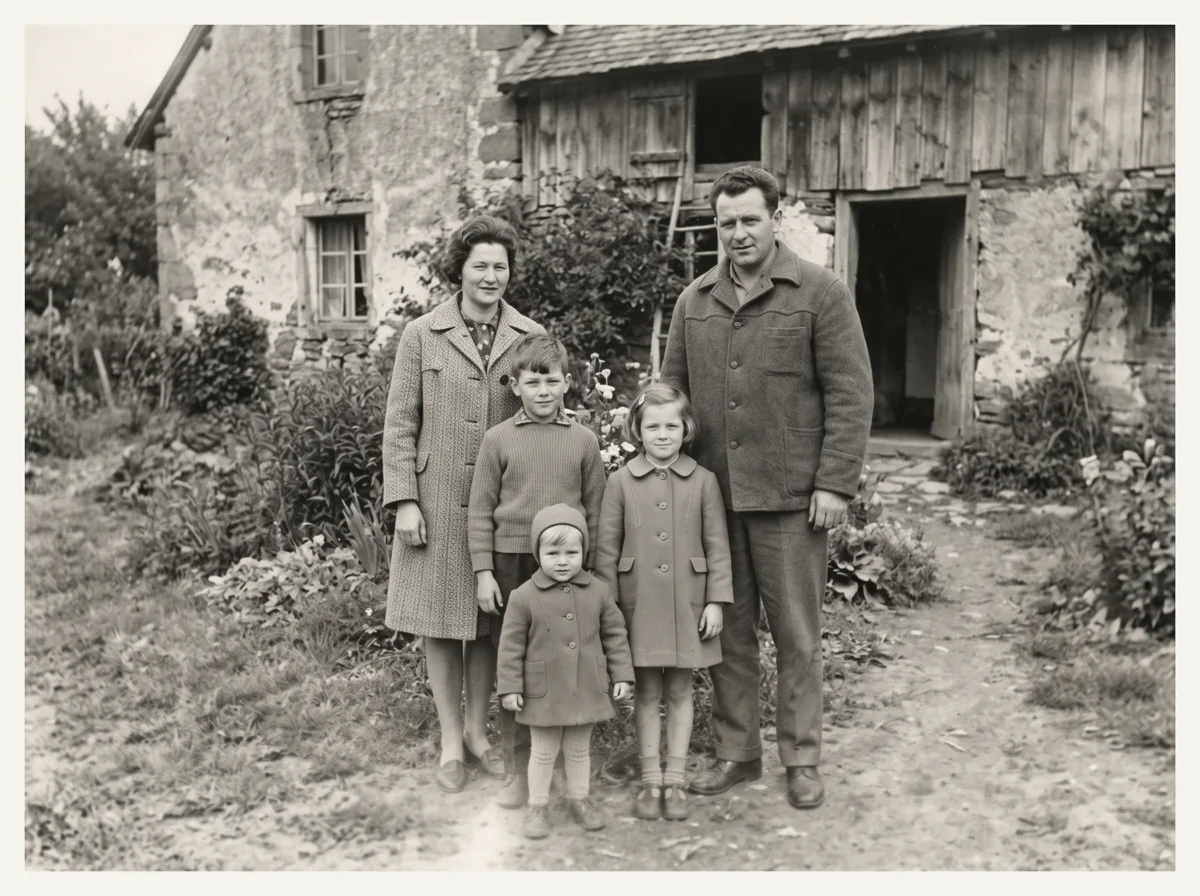
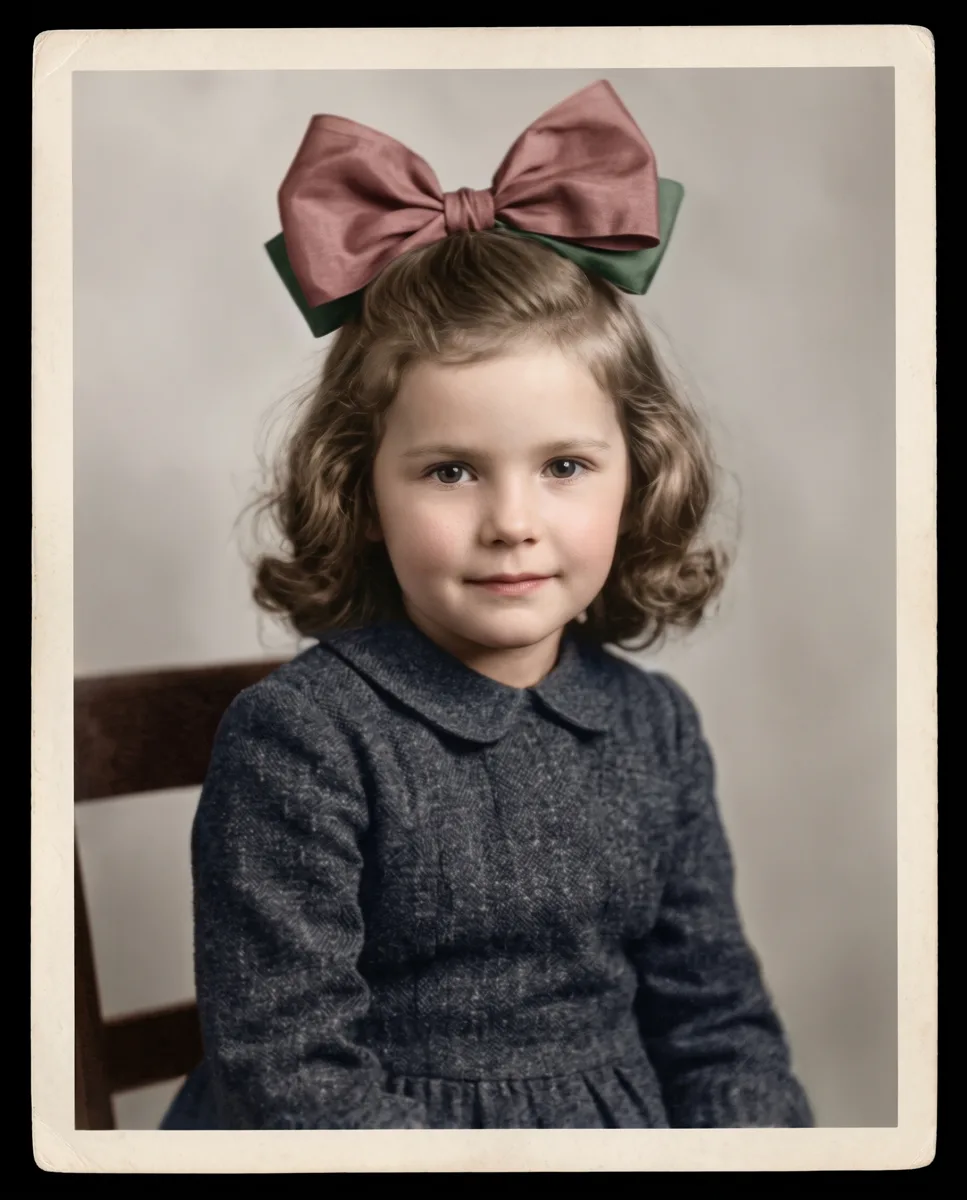
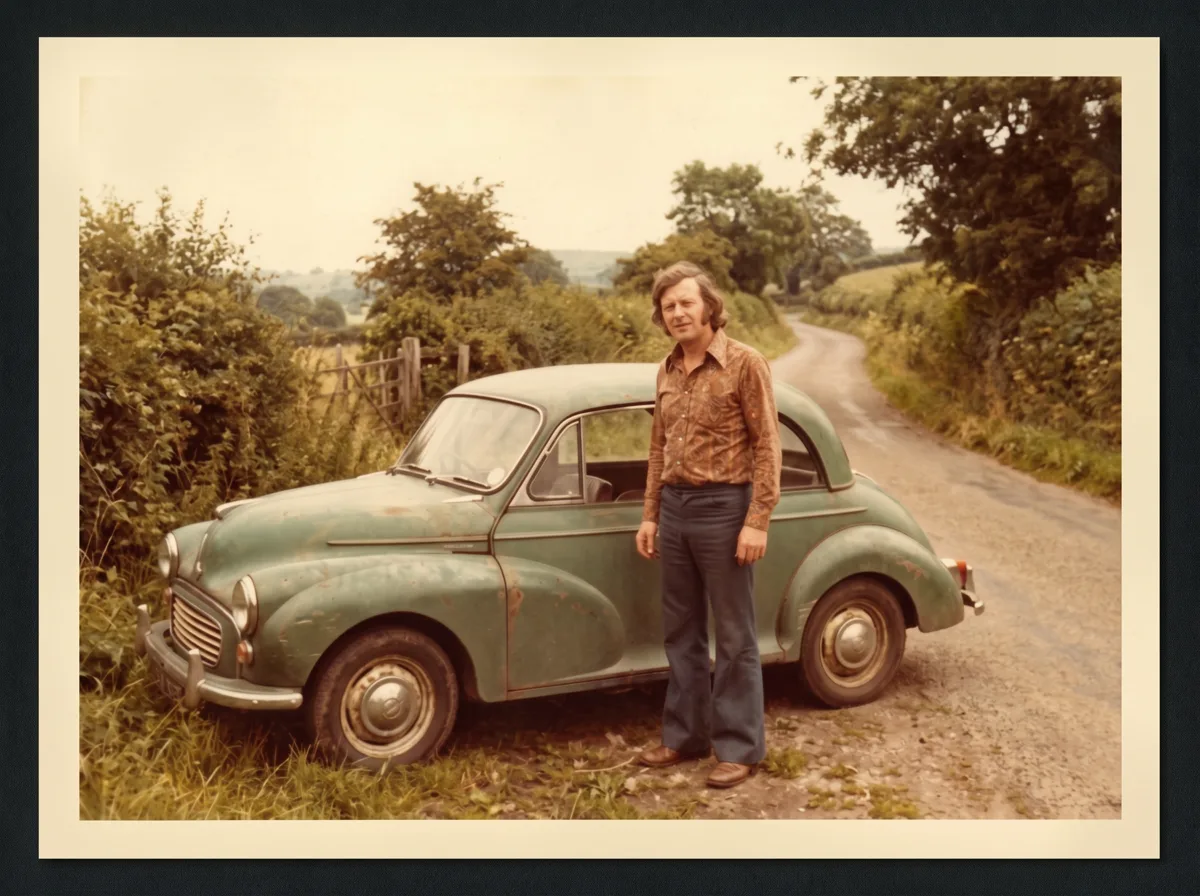
How it works
- 1Upload your photo
A clear photo with a visible face or object works best.
- 2Press “Create”
The prompt and Nano Banana 2.1 are already tuned. The price is shown on the button.
- 3Download the result
The image is ready in under a minute and is saved to your library.
How photo restoration works online
An old portrait, wedding picture or family snapshot may survive with scratches, creases and faded areas. Neuromia uses Nano Banana 2.1 to repair visible damage, address fading and improve sharpness. You need a digital copy to begin, either a scan or a clear photograph of the paper original.
Choose between “restore only” and “restore and colorize.” The first focuses on restoration without intentionally adding a new color version; the second combines repair with colorization. Your completed image is saved in your personal library, where you can download it for an album, family archive or print project.
Prepare a clear scan of the original
If you have a scanner, position the photograph flat and capture the whole picture without cutting off its edges. Check the scanner glass for dust first. Avoid applying strong sharpening or artistic filters beforehand: a source that retains genuine detail gives the restoration a more useful starting point.
Scan the photograph itself rather than an entire album page when you can do so without risking damage. Do not pull a fragile or firmly attached print out of an album just to upload it. Save the unedited scan separately and work from a copy, keeping a reliable reference for comparing any restored versions.
Photograph a print with your phone
A scanner is not essential. Place the print on a flat surface and use soft lighting without flash or glare. Hold the phone parallel to the photograph so its rectangular shape is not distorted. Check that your shadow does not cross a face and that focus is on the picture rather than the frame or glass.
Take several shots and select the sharpest. Reduce unnecessary space around the photo while retaining the full image. A reflection may hide the original information completely, leaving the model to infer it. Retaking a photo with less glare is more useful than expecting processing to recover exactly what was behind a bright reflection.
Black-and-white and faded photographs
Old photo restoration does not have to include colorization. If you want to keep a familiar monochrome portrait or the character of an album picture, choose “restore only.” This directs the task toward damage, fading and sharpness without asking for a newly colored interpretation of the scene.
Older color prints may have pale or uneven tones. After processing, compare skin, clothing and background areas with the original and any other photos from the same period. A brighter result is not automatically a more accurate one. Choose a version that makes the picture easier to see while remaining consistent with the details your family recognizes.
Scratches, cracks, creases and torn edges
The model works on scratches, stains, cracks and fold marks. Difficulty depends on where the damage lies as well as how large it is. A line across a plain background and a crease across someone's eyes require different amounts of reconstruction. Where source information is missing, the model supplies a plausible continuation.
If a torn photograph survives in several pieces, carefully arrange them together on a flat surface before capturing it. Do not tape across the image just to make a digital copy. A missing button, section of clothing or part of a face can only be inferred; a convincing repair does not make that detail historically accurate.
Group portraits and wedding pictures
For a group photograph, preserve the complete frame if you want to restore the whole scene. People near the edges can matter just as much as the central figures. After processing, check each face in turn, along with hands, clothing and objects that carry personal significance for the family.
In wedding pictures, inspect veils, lace, bouquets and jewelry. Fine details may be difficult to distinguish in a small or damaged source. Photo restoration can make a picture easier to view, but it cannot guarantee every pattern. If a face looks unfamiliar, compare it with other portraits of that person and ask relatives for their impressions.
Colorization is an interpretation
To colorize a black-and-white photo, select “restore and colorize.” The model adds color while repairing the image. This can offer a different way to view a familiar scene, but the shades of clothing, eyes, interiors and other objects are model predictions, not recovered color records hidden in the monochrome picture.
If relatives remember the dress color or an object still exists, use that information to evaluate the result. Avoid presenting the colored copy as an exact record of the original colors. For an album, keep both the black-and-white source and the colorized version, with a clear note that AI added the color.
Check likeness and important details
AI photo restoration involves reconstruction: the model does not know exactly what an erased detail looked like. Before sharing a result widely or ordering a large print, compare it with the source. Pay particular attention to eyes, smiles, facial shape and distinctive features that make a person recognizable.
A short review can help:
- Check that all people and important objects are still present.
- Compare expressions with the original.
- Look for invented jewelry or clothing details.
- Verify readable writing and dates.
- Inspect the edges for missing parts of the scene.
Ask relatives whether familiar features still look right. If an area was almost entirely missing, treat the reconstruction as a possible version rather than an established fact.
Save an archive copy and prepare for printing
The result is generated at 2K. Before printing, check the downloaded file's actual dimensions against your photo lab's requirements. Inspect it closely, since an issue that is easy to miss on a phone can stand out in a print. For a meaningful gift or album, consider a test print before ordering the final version.
Each restoration costs 6.6 credits. Try it with sign-up bonus credits: your 10 credits cover one photo. There is no subscription; pay as you go. Use a phone or computer without installing software. Credits are charged only for a completed result and returned if processing fails. Upload your own photos or images of people with their consent; photos are used only for processing. Keep the source and restored copy separately, adding any known names, location and date to your archive.