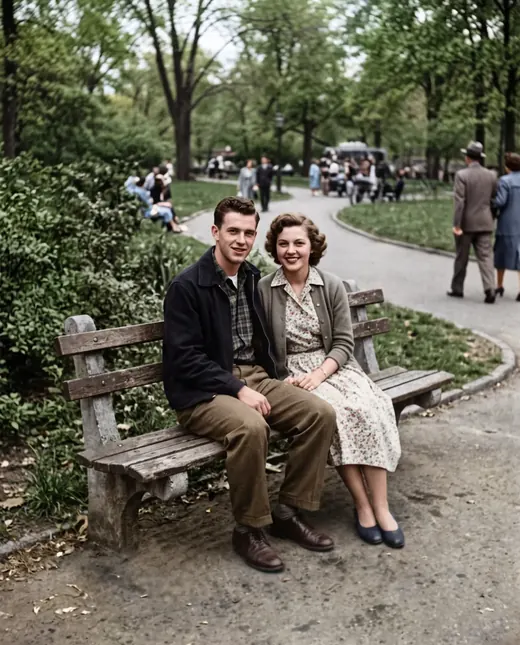
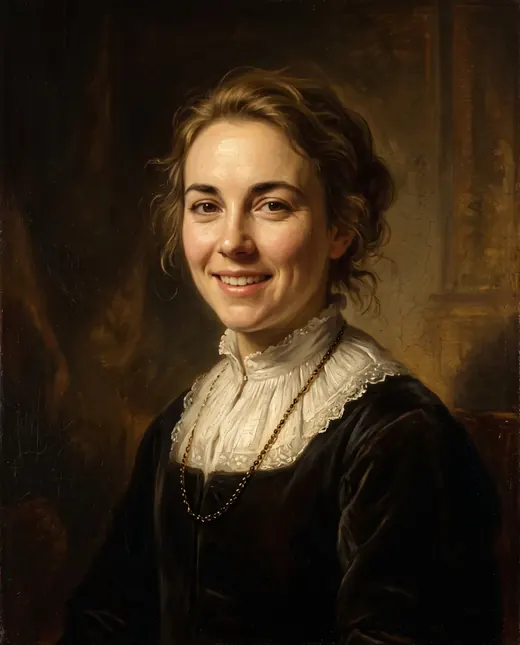
 Result
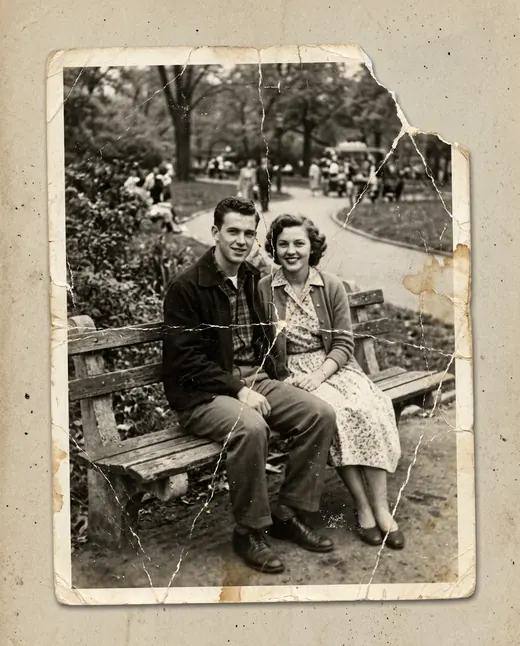
 Before
Hairstyle try-on: see a new cut and color on your photo
See yourself with a bob, bangs, curls or a men's haircut. Choose a style and color, add a request and generate up to four options while keeping your face.
Examples





How it works
- 1Upload your photo
A clear photo with a visible face or object works best.
- 2Press “Create”
The prompt and Nano Banana 2.1 are already tuned. The price is shown on the button.
- 3Download the result
The image is ready in under a minute and is saved to your library.
How a hairstyle try-on works
A haircut on someone else can inspire you, but seeing it on your own face makes the choice more personal. Upload a portrait, select a hairstyle and hair color, and add an optional request such as “side-swept bangs.” Google's Nano Banana 2.1 changes the hair while preserving your face. Generation takes 30–60 seconds.
Use the image to explore length, shape and color before making a real change. It is a visual preview to discuss with a stylist. The tool cannot assess the condition of your hair or guarantee that a cut will fall exactly as shown after washing and your usual styling routine.
Explore the available cuts and styles
There are 16 choices: short cut, bob, long bob, bangs, curtain bangs, layered cut, shag, long curls, long straight hair, curly hair, braid, bun, men's short cut, fade, quiff and men's longer cut. You can explore a major change in length or a smaller update to a familiar look.
If you are unsure where to begin, compare contrasting shapes. Try an open forehead against bangs, a defined outline against layers, or straight lengths against curls. A bun or braid is useful for seeing an updo: notice whether you like your neck, ears and face more exposed before choosing that look for an occasion.
Use face shape as a starting point
Face shape can guide a comparison without dictating what you should wear. Look at where the volume sits, which areas are exposed and how strands frame your features. The same length can feel different with a fringe, a different parting or softer movement.
- For an oval face, compare lengths and decide which features you want to emphasize.
- For a round face, explore a long bob or height on top if you want a longer-looking outline.
- For a square face, consider soft layers or curls if you prefer a less angular frame.
- For a heart-shaped face, compare curtain bangs and fullness nearer the jaw.
- For a long face, explore bangs and volume at the sides.
These are starting points for a hairstyle try-on, not rules. Your preference matters more than fitting your appearance into a category.
Compare men's haircuts before a barber visit
The men's options include a short cut, fade, quiff and longer style. Start by deciding how you feel about shorter sides and an exposed forehead, then compare the amount of height on top. A fuller top and longer strands can create quite different frames around the same face.
An AI haircut preview can also help with a modest change when you are not ready to lose much length. Save the result and discuss the transition at the sides, styling direction and length with your barber. The picture cannot establish how a cowlick will behave or whether your hair has enough density to support the shape shown.
Preview hair colors without changing everything
Choose from eight color options: your own, blonde, platinum, ash, chestnut, dark, red and pink. Keep your own shade when comparing cuts. To explore color, keep the hairstyle broadly similar so a new fringe or different curl pattern does not distract from your response to the shade itself.
Notice how a lighter or darker tone works with your eyebrows, eyes and usual makeup. The result is a visual reference, not a dye formula. Real color depends on your starting shade, previous coloring and hair condition. A generated image cannot tell you whether a shade is achievable in one appointment or what maintenance it will need.
Choose a clear photo for your preview
Use a sharp portrait with even lighting and a clearly visible face. The top of your head should remain in the frame, and the hair should be distinguishable from the background. Hats, hands and large accessories can obscure the outline. Strong head tilts and unusual angles make length and volume harder to compare.
For a first attempt, choose a straightforward front-facing photo without strong beauty filters. You want to judge the hairstyle on a familiar version of your face. Upload your own image or obtain consent from the person shown. Photos are used only for processing, and finished images are saved in your personal library for download.
Compare up to four options at a time
You can generate up to four options in one run. Use the same source portrait to keep your comparison useful, then examine specific features: the length around your face, position of the bangs, volume at the crown and how much of the ears is visible. Look at the overall outline as well as individual details.
For a clearer decision, explore shape before color instead of changing every element together. A hairstyle try-on is most useful when it helps you identify what you actually like. Consider everyday questions too: would you want to tie the hair back, style it each morning or maintain a shorter length? Ask your stylist about the practical work involved.
Bring a useful reference to your stylist
Save your original photo alongside the generated looks you prefer. Explain what appeals to you in each one: the bob's outline, length near the chin, softer bangs, volume or color. If you like the cut in one result and the shade in another, describe those choices separately rather than asking for every detail to be copied.
Ask your stylist how the idea translates to your hair's density, texture and growth pattern. Also inspect the generated hairline, ears and temples. The tool preserves your face, but small details near the changed hair may still be inaccurate. A useful reference gives the consultation a starting point while leaving room for a cut that works in real life.
Choose a resolution and plan your credits
Each option costs 4.4 credits at 1K, 6.6 credits at 2K or 9.9 credits at 4K. The price applies to each generated image, so multiple options are charged individually. Try it with sign-up bonus credits: your 10 credits cover one option at 2K. Start with a look you are curious about and assess the preview before exploring further.
There is no subscription; pay as you go. Use Neuromia in a browser on your phone or computer without installing software. Credits are charged only for a completed result and returned if processing fails. Download your saved images before a salon appointment so you can show the exact features you would like to discuss.