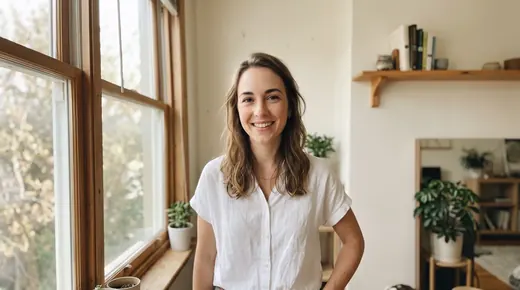
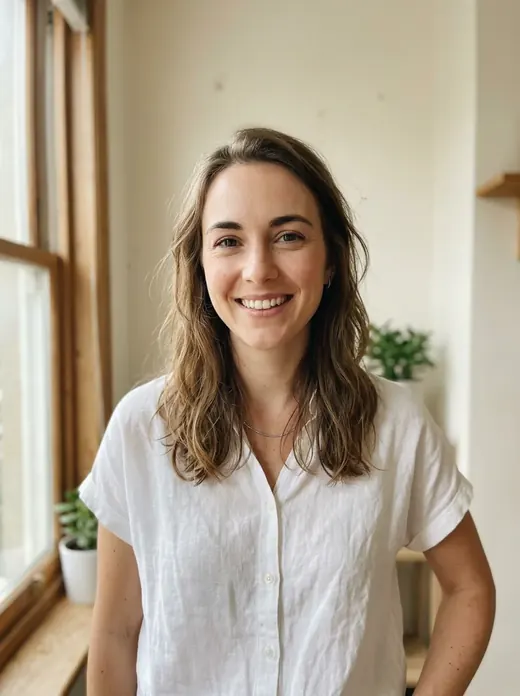
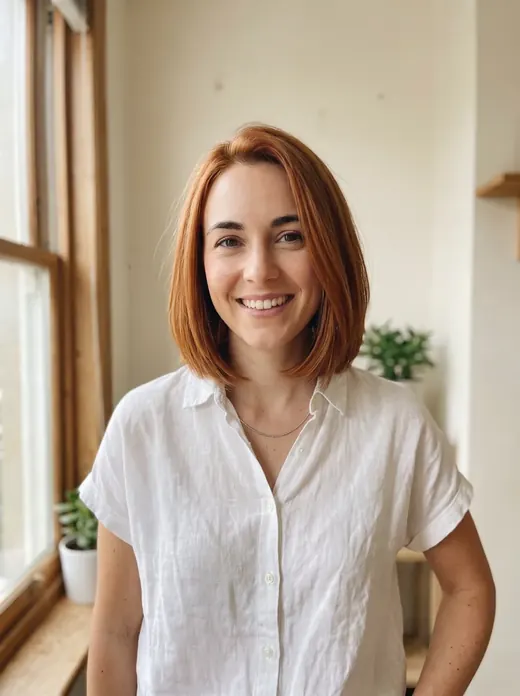
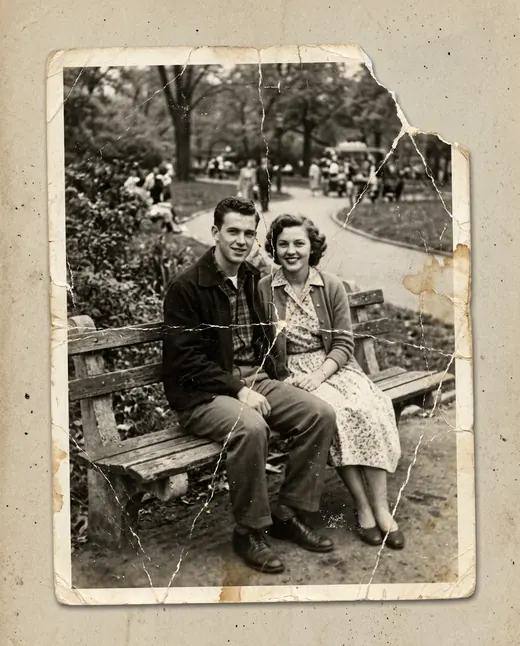
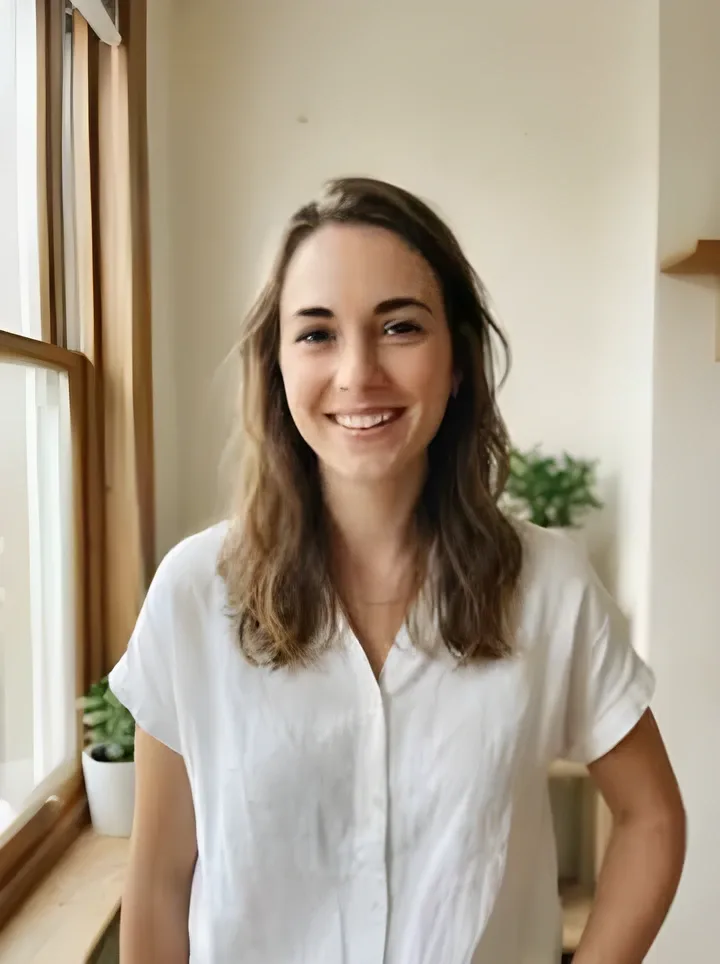
 Result
 Before
Enhance photo quality for clearer, larger images
Recraft Crisp Upscale increases image size and clarity in seconds. Upload a small, blurry or older photo and start processing with one button, with no modes to choose.
Examples
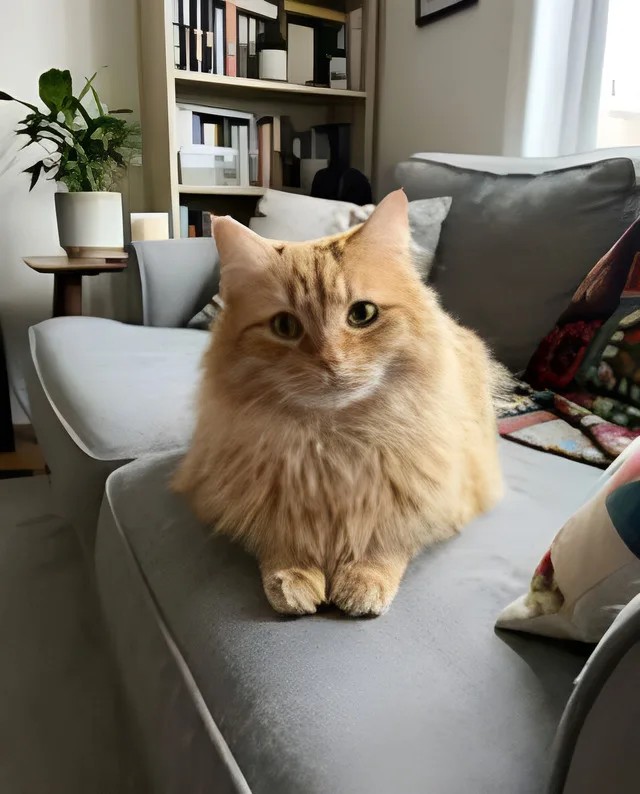
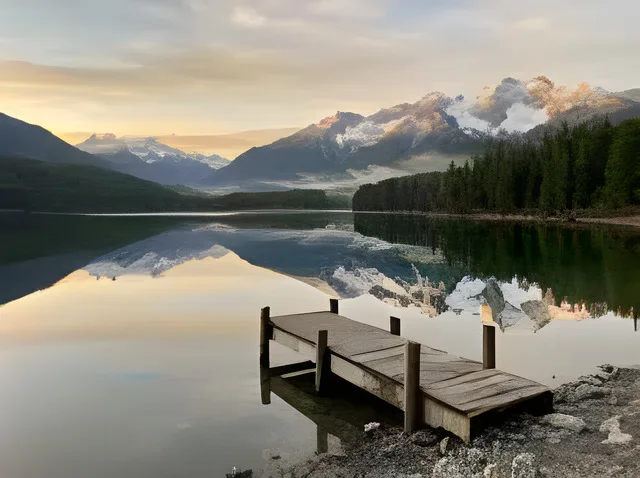
How it works
- 1Upload your photo
Large photos are resized automatically — no editor needed.
- 2Press “Process photo”
Recraft Crisp Upscale is already set up — just pick the options you need.
- 3Download the result
The result is ready in seconds and saved to your library.
Enhance photo quality online with one button
A small image, soft outline or compressed copy can still be useful. Recraft Crisp Upscale increases image size and clarity in seconds. There are no separate modes to configure: upload your source, start processing and compare the finished version with the original before deciding how to use it.
The result is saved in your personal library and can be downloaded to your phone or computer. Check faces, small objects, lettering and textures as well as the overall impression. A sharper image may look more defined, but that does not mean every reconstructed detail matches the original scene exactly.
Photos from phones, Telegram and WhatsApp
A picture can look fine on a small screen and lose definition when enlarged. Chat images, repeatedly forwarded photos and saved copies may contain less detail than the original. Processing can make soft boundaries clearer when a better source is unavailable, but it cannot undo every loss caused by compression.
If possible, ask for the original file rather than another image sent through a chat. Avoid taking a screenshot of an already reduced photo, since that creates another limited copy. When a compressed Telegram or WhatsApp image is all you have, use it with realistic expectations and inspect the result closely.
Screenshots and individual video frames
A video frame can become a cover image, illustration or keepsake. Choose a moment with less movement, where the face and important objects are relatively clear. Export the frame directly when your player supports it instead of photographing the screen and introducing glare or visible interface elements.
AI can increase apparent clarity, but heavy motion blur and tiny text remain difficult. In screenshots of documents, tables or interfaces, compare letters and numbers with the source. An enhanced image should not be treated as evidence that an unreadable label originally contained the characters shown in the result.
Older family photos without major damage
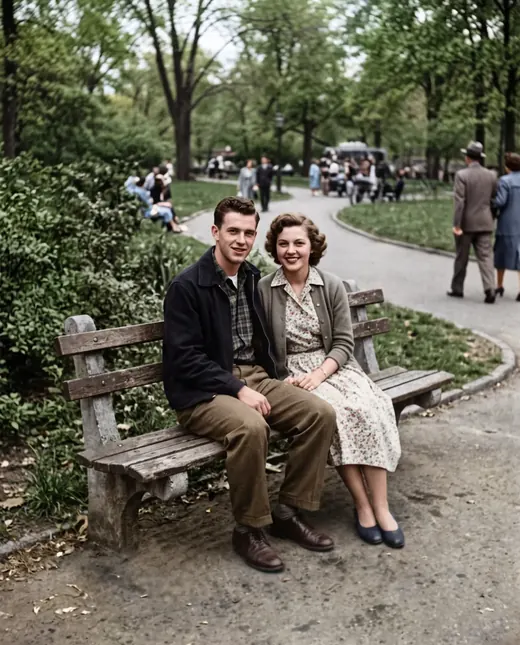
You can enhance photo quality when a family picture survives only as a small digital copy or a slightly soft scan. This tool increases clarity and size. Begin with the most complete source available: cropping too early can remove useful details of clothing, surroundings or people near the edge.
For cracks, scratches, stains and creases, use the separate Old Photo Restoration template. Sharpening is not a substitute for repairing physical damage. Compare faces with the original in either case. More defined features may look convincing without being an exact reconstruction of information that was lost from the photograph.
Product images for marketplace listings
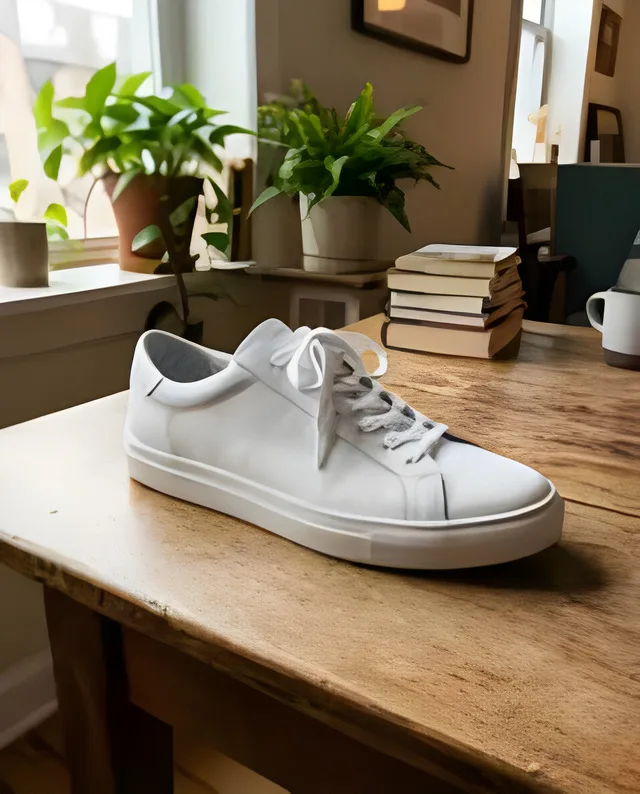
A clearer product picture can make shape, stitching, surfaces and included parts easier to inspect. Enhancement may help when a source image is small or soft. Afterwards, check logos, labels, fabric texture and fine components carefully, since these can influence how a customer understands the item.
The final image should remain a faithful representation of the product. If processing introduces details that are not present in the original, avoid publishing that version. For important features, taking a new close-up is a more reliable option. Also check the marketplace’s current image requirements before uploading your listing.
Avatars, social posts and printed photos
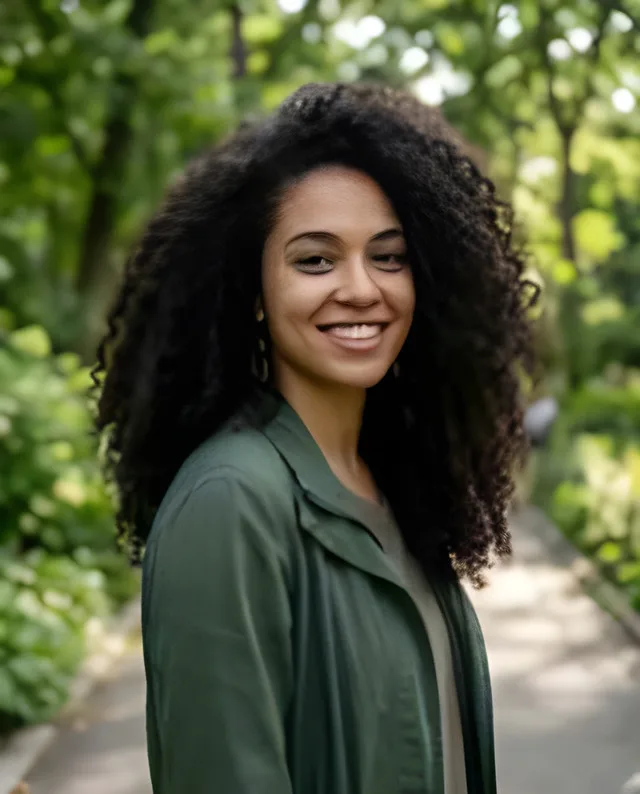
A small portrait can be enhanced before you use it as an avatar or add it to a post. Compare versions at the size your audience will actually see, not only at high magnification. Stronger outlines may be more noticeable than additional detail when the picture is displayed in a small circle.
For printing, check the downloaded file’s dimensions against your photo lab’s requirements. A larger image does not guarantee equally good results on a small print and a large poster. For an important order, ask the printer to review the file or make a test print. Keep the original alongside the processed version for comparison.
What AI enhancement can and cannot recover
To enhance photo quality with AI is to produce a clearer interpretation of the available image. The model works with visible information, but it may infer parts that are indistinct. It cannot reliably recover details that were never captured or prove what a completely unreadable area originally contained.
Keep these limits in mind:
- Heavy motion blur may remain difficult to correct convincingly.
- Missing details cannot be reconstructed with guaranteed accuracy.
- Tiny letters and numbers may be interpreted incorrectly.
- Faces and complex textures need comparison with the original.
If you want to improve a photo to 4K, this tool has no selectable 4K output or enlargement factor. For 2×–4× enlargement, use the separate Increase Photo Resolution page.
Choose the strongest available source
Upload the best version you have. An original stored on a phone is generally a more useful starting point than a copy repeatedly forwarded or saved from social media. Enlarging a tiny image beforehand does not add real source detail. Avoid unnecessary intermediate conversions before submitting it for processing.
If you have several similar shots, choose the one with the clearest subject, more even lighting and fewer obstructions. Repeated enhancement is not a reliable way to retrieve more information: it may strengthen inaccuracies along with edges. Compare a result with its source and decide whether it is suitable for the intended use.
Bonus credits, accounts and saved results
Try it with sign-up bonus credits: your 10 credits cover 18 photo enhancements. Each run costs 0.55 credits. If you are looking for photo enhancement without registration, an account is required here to receive the bonus and keep finished images in your personal library. There is no subscription; pay as you go.
Use Neuromia in a browser on your phone or computer without installing software. Credits are charged only for a completed result and returned if processing fails. Upload your own pictures or photos of people with their consent; images are used only for processing. Download the finished file and keep it with the original so you can compare versions before sharing or printing.