How to make a presentation with AI: step-by-step
Create a presentation with AI using a dedicated slide generator, or prepare the content and images with an AI model. Follow step-by-step instructions, use ready-made prompts, practice building slides, and check the results.
How to make a presentation with AI: two methods
AI can create a presentation outline, write slide content, suggest visuals, and help you prepare your speech. Dedicated presentation generators can also turn that content into designed slides.
The right method depends on how quickly you need the result and how much control you want over the content.
| Criterion | AI presentation generator | AI chat + editor |
|---|---|---|
| First result | Faster | Requires several steps |
| Design | Generated automatically | Customized manually |
| Content control | Requires review and editing | You control each slide |
| Working with numbers | Depends on the source data | Easy to add verified metrics |
| Finished PPTX | Depends on the service's export options | Created in a compatible editor |
| Best for | First drafts, standard presentations | Reports, project defenses, important presentations |
Method 1: generate finished slides with a dedicated tool
Gamma and other AI presentation generators are tools for automatically creating presentations. They let you provide the content while the service suggests slide layouts and visual designs.
A typical workflow:
- Open your chosen service and find the presentation creation feature.
- Enter a topic or provide source material if the service supports uploads.
- Specify the audience, number of slides, and visual style.
- Review the proposed outline before generating the design, if the service allows it.
- Generate the slides and fix any problems.
- Export the presentation in an available format or prepare a shareable link.
Example prompt:
Create an 8-slide presentation titled “How to reduce plastic waste at school.” Audience: teachers and school administrators. Duration: 8 minutes. Explain the problem, a possible solution, the resources needed, and a proposal for launching the project. Use a light background, short headlines, and minimal decorative elements. Do not invent statistics.
Review the proposed sequence before generating the design. If a slide repeats the previous one, remove it. If an important idea is buried in a large section, give it a separate slide.
You don't need to rebuild the entire presentation after generation. Depending on the available editing features, you can correct specific text, replace an image, or choose another layout.
Method 2: create content with AI and assemble the slides manually
This method works well when you need to preserve accurate figures, use your own materials, or follow a specific visual style.
In the free Mia chat, you can prepare an outline, key points, speaker notes, and potential audience questions. GPT, Claude, Gemini, and Grok are available for credits. You can generate images separately in the image generator.
Then transfer the content to PowerPoint, Google Slides, Keynote, or another presentation editor.
Neuromia doesn't create finished PPTX files. You use it to prepare content and illustrations, then assemble the presentation in an editor.
If you've already created a draft with a dedicated presentation generator, you can combine both methods: keep the existing design, revise the text using AI chat, and replace any unsuitable images.
- 1PreparationDefine the goal, audience, speaking time, and source materials
- 2OutlineOrganize the slides and check the transitions
- 3ContentPrepare headlines, key points, and speaker notes
- 4VisualsAdd verified charts and relevant images
- 5AssemblyChoose layouts and transfer the content into an editor
- 6PresentationCheck the file, rehearse, and prepare answers to questions
What to prepare before creating a presentation
Start by deciding what your audience should learn or do after your presentation. You need four key parameters.
| Parameter | What to specify | Example |
|---|---|---|
| Goal | Desired outcome | Get approval for a school project |
| Audience | Who will attend | Teachers and the school principal |
| Time | Presentation duration | 8 minutes |
| Materials | Source facts and data | Survey, calculations, project description |
As a starting point, allow approximately 1–2 minutes per slide. For an eight-minute presentation, you might begin with 5–8 slides. A complex chart takes longer to explain than a photograph.
Account for audience questions if they count toward your total time limit.
Creating a presentation from scratch, a document, or an older version
When starting from scratch, gather the facts and create an outline first. If you already have a document, divide it into logical sections and shorten the content. If you're updating an existing presentation, keep the slides that work well, remove repetition, and replace outdated figures.
You can attach a PDF, TXT, CSV, or image to the Mia chat. For example, upload a research paper and ask Mia to identify the main findings for your presentation.
Check which source file formats each dedicated presentation generator supports. Some tools also let you import an existing presentation and revise it.
Before uploading a document, remove unnecessary personal information, passwords, and confidential data. Only upload company materials to an external service if your organization's policies allow it.
For documents with a complex structure, first organize the content into short sections with headings. Keep figures and findings together with the explanations they support.
In the How to use AI for spreadsheets and data analysis lesson, you learned to extract findings from spreadsheets. Now you'll turn those findings into slide content.
How to create a presentation outline with AI
An outline determines the order in which your audience receives information. Each slide should communicate one distinct point.
Open the Mia chat and enter this prompt:
Create an outline for a presentation titled “How to reduce plastic waste at school.”
Goal: propose launching a waste sorting program to school administrators.
Audience: teachers and the school principal.
Presentation length: 8 minutes.
Include exactly 8 slides, including a title slide and a closing slide.
For each slide, provide a headline that communicates a specific point, the main takeaway, a recommended visual, and estimated speaking time.
Do not invent statistics. If measurements are needed, label them as data that still needs to be collected.
The resulting outline might look like this:
| Slide | Takeaway headline | Suggested visual |
|---|---|---|
| 1 | Our school can reduce plastic waste | Relevant photograph |
| 2 | Single-use packaging ends up in general waste | Problem diagram |
| 3 | Waste sorting needs clear rules | Step-by-step diagram |
| 4 | A survey will show whether students are ready | Survey results once collected |
| 5 | We can start with three measures | Three sections |
| 6 | Launching the program requires resources and assigned responsibilities | Table |
| 7 | We can measure results every week | Measurement plan |
| 8 | We propose launching a pilot waste sorting program | Final proposal |
Notice that slide four reserves space for the results of a future survey. AI must not present invented student responses as findings from a completed survey.
How to check the slide sequence
Read only the headlines. They should form a coherent story: problem, explanation, solution, resources, measuring results, and proposal.
If two consecutive slides make the same point, combine them. If you introduce the solution before explaining the problem, change the order.
To review the outline, ask:
Identify repeated ideas, missing arguments, and abrupt transitions between slides. Suggest improvements without increasing the total number of slides.
This prompt uses techniques from the How to write AI prompts: a step-by-step guide lesson. You're applying a familiar method to organizing a presentation.
Which structure should you use?
| Presentation type | Structure |
|---|---|
| Educational presentation | Topic, explanation, examples, conclusion |
| Business report | Objective, metrics, changes, causes, actions |
| Sales presentation or pitch | Problem, solution, benefits, evidence, proposal |
| Project defense | Problem, methodology, completed work, results, limitations |
For a business report, it often helps to present the results earlier. When defending a project, you need to explain exactly what you did and how you verified the results.
Choose your structure before writing the slide content. This reduces the risk of creating several slides that repeat the same claims.
How to turn text into clear slides
A slide should support your presentation. When a large paragraph fills the screen, the audience starts reading instead of listening to the speaker.
Follow the “one slide, one idea” rule. For a typical text slide, 3–5 short bullet points are enough. Put the details in the speaker notes.
Write headlines that communicate a takeaway. Instead of “Activities,” use “Launching the program requires three actions.”
Example: a slide before and after editing
Headline: “Organizing waste sorting”
Setting up a waste sorting program at school involves several steps, including deciding where to place recycling bins, explaining the program to students, assigning staff members to monitor the process, and coordinating with a specialized waste collection company to collect the sorted materials. The school must also regularly evaluate the program's results.
Headline: “Launching the program requires three actions”
- Set up clearly labeled waste sorting bins.
- Explain the sorting rules to students.
- Assign people to manage collection and pickup.
Speaker notes:
“First, we'll agree on where to place the bins. Then we'll explain to students which materials go into each bin. Before launching, we need to assign responsibilities and arrange waste collection.”
In the revised version, the headline immediately communicates the main point. The bullet points are readable from a distance, and the spoken explanation doesn't take up space on the screen.
Launching the program requires three actionsSet up clearly labeled waste sorting binsExplain the sorting rules to studentsAssign people to manage collection and pickupAgree on bin locations and collection arrangements
- Takeaway headlineCommunicates the main point
- First bullet pointIdentifies a specific action
- Second bullet pointShows the next step
- Third bullet pointCompletes the launch plan
- Speaker notesProvide explanations for the speaker
Prompt for a single slide
Rewrite the following text as one slide for school administrators.
Create a headline that communicates the main takeaway and exactly three short bullet points.
Move the details into speaker notes for 40–60 seconds of speaking.
Do not add new facts. If there's too much information, suggest splitting the content into two slides and explain why.
Original text: [paste paragraph].
If AI cuts too much information, ask it to restore the specific point that's missing rather than the entire original paragraph.
You've already practiced summarizing and editing in the How to write and edit text with AI lesson. For presentations, you also need to check whether the text is readable on screen.
How to add numbers, charts, and diagrams
Charts are useful when you need to compare values or show changes. Don't automatically replace every table with a chart. A table can be clearer when you have a small dataset and need to show exact numbers.
Suppose we have this sample dataset showing the number of customer inquiries:
| Month | Inquiries |
|---|---|
| January | 120 |
| February | 145 |
| March | 130 |
| April | 170 |
Ask AI:
Based on the table of customer inquiries for January, February, March, and April, recommend an appropriate chart. Create a headline with a verifiable takeaway, axis titles, and unit labels. Do not add any other metrics.
A line chart will show changes over time. A bar chart works well for comparing individual months.
A verifiable headline: “April had 50 more inquiries than January.”
| What you're showing | Recommended visual |
|---|---|
| Changes by month | Line chart |
| Comparison between categories | Bar chart |
| Parts of a whole | Pie chart |
| Sequence of actions | Process diagram |
Once you've chosen a visual, enter the original values in your presentation editor. Label the axes and units. If the data comes from a report, include the source and reporting period below the chart.
Check that the axis scale doesn't exaggerate differences. Bar charts showing quantities should generally start at zero.
Label forecasts, planned targets, and actual measurements separately. Don't present a projected result as something you've already achieved.
If AI adds a number that isn't in your source materials, find supporting evidence or remove it. The verification process is covered in the AI hallucinations: why AI makes mistakes and how to check lesson.
AI models in Neuromia's chat don't search the internet. You need to verify current information and external sources yourself.
How to create images for your presentation
A relevant photograph works well on a title slide. Use a diagram to explain a process and a chart to compare results.
You can skip decorative images when they don't help explain the content. This is especially true for slides with tables and metrics.
Illustration for the title slide
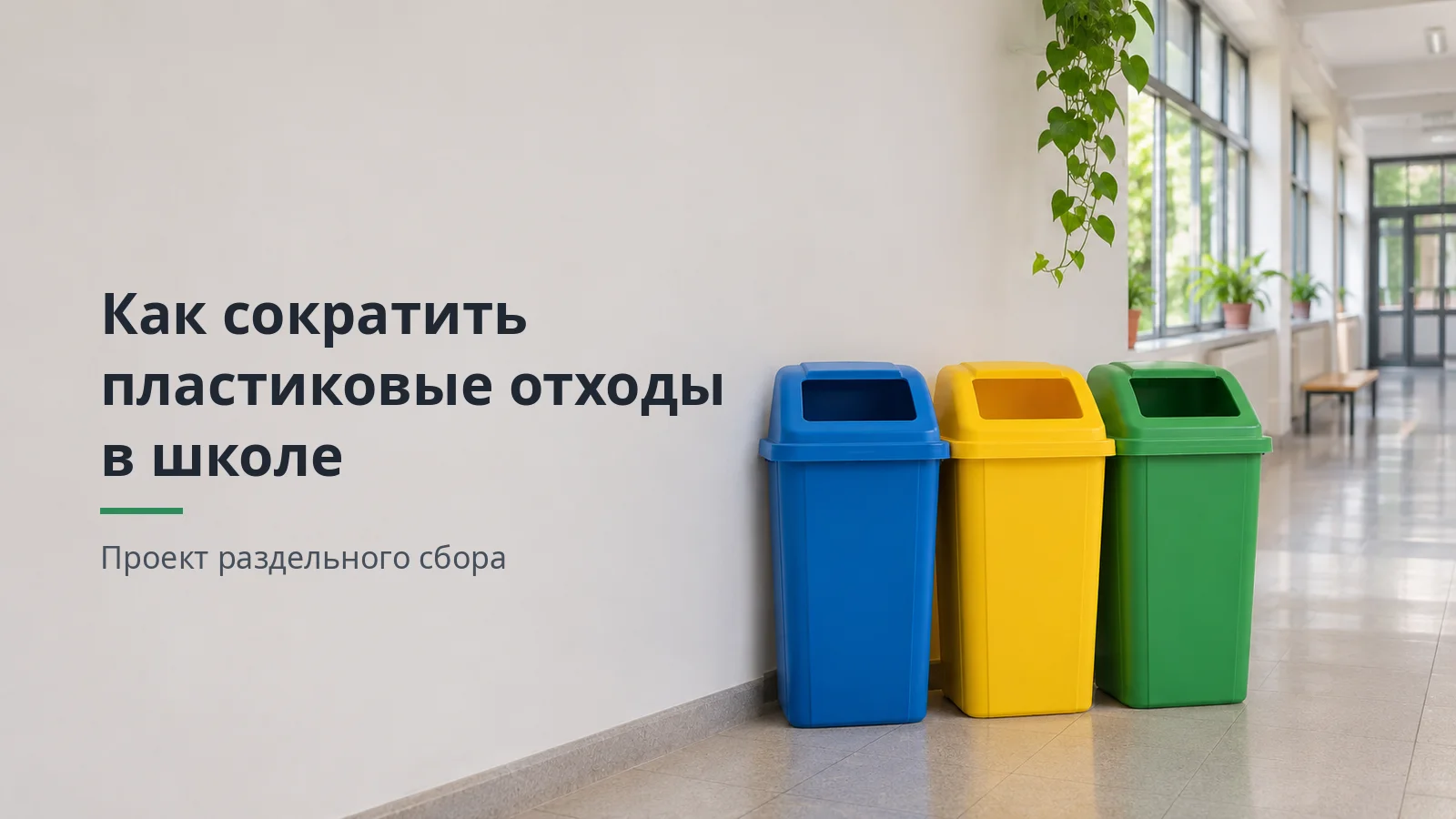
Ask the image generator to leave empty space for the title. Add the actual headline in PowerPoint or another presentation editor so you can revise it without generating a new image.
Example prompt:
Photorealistic horizontal photograph of a bright school hallway. Three neat waste sorting bins stand on the right. Large windows, soft natural daylight, natural colors. Leave the left half of the frame empty, with a plain, light-colored wall for a headline. 16:9 aspect ratio. No people, text, logos, or watermarks.
In the Neuromia image generator, choose the 16:9 aspect ratio.
For your first attempt, use Flux 3 Klein at 1.76 credits. Nano Banana 2.1 is also available at 4.4 credits, and GPT Image 2.5 costs 6.6 credits per image. You can consider the last model for complex scenes and tasks involving text.
Our example doesn't need any text inside the image, so Flux 3 Klein is a good starting point.
How to maintain a consistent visual style
For a series of illustrations, repeat the same style parameters in your prompts: realistic photography, daylight lighting, neutral colors, and horizontal composition.
Change the subject while keeping the style description. For example, the next image could show packaging on a school desk under similar lighting.
An image generator can't guarantee identical color rendering across separate images. Compare the images side by side before adding them to your slides.
For simple icons, use a built-in icon library in your presentation editor. Diagrams with labels are also easier to create using editable shapes.
AI can help you prepare the content of a diagram:
Represent the waste sorting process as four sequential blocks. Create a label of no more than five words for each block. Describe the connections between the blocks.
Transfer the generated labels into your editor. Avoid asking an image generator to render small text or numerical metrics.
How to assemble and design your presentation
Once the content is ready, open PowerPoint, Google Slides, Keynote, or another presentation editor.
Assembly steps
- Create a presentation with a 16:9 aspect ratio.
- Choose a design theme and a consistent color palette.
- Add slides in the order of your approved outline.
- Insert the headlines and short bullet points.
- Add images, charts, and diagrams.
- Put detailed explanations in the speaker notes.
- Review the presentation in full-screen mode.
Keep headlines in consistent positions, use matching fonts, and maintain uniform spacing. Body text should be readable from a distance.
Using one primary font and a limited color palette makes the design easier to manage. The background shouldn't interfere with readability.
If you have brand guidelines or a reference presentation, use them as a guide. You can tell AI which colors and headline positions to use and which design elements to avoid.
For example:
Suggest a consistent visual style for an educational presentation: white background, dark gray text, and green accents. Left-aligned headlines, no decorative gradients or 3D shapes. Describe layouts for a title slide, a bullet-point slide, a chart, and a final proposal.
Your presentation editor's built-in themes and design tools can help you apply these rules.
How to save or share the result
If other people need to edit the presentation, save it in a compatible, editable format. For sharing or printing, you can use PDF.
If you're using a dedicated presentation generator, check whether your required export format is available before starting.
Some services let you present directly in a browser or share a link. If the presentation must remain private, restrict viewing access to the intended audience.
Comments and editing permissions are useful for collaboration if your chosen tool supports them.
Before presenting, open the finished file on the device you'll use. Check the fonts, images, text wrapping, and animations. If you'll be presenting without an internet connection, make sure you have a local copy.
How to prepare for your presentation with AI
Finished slides don't replace the speaker. You still need to explain your conclusions and answer questions.
Speaker notes
Give AI your approved outline:
Prepare speaker notes for an 8-slide presentation lasting 8 minutes. For each slide, write a short spoken explanation and a transition to the next slide. Don't repeat the bullet points word for word or add new facts. Outline: [paste outline].
Read the notes aloud. If a sentence is difficult to say naturally, shorten it.
For an eight-minute presentation, you could allocate the time as follows:
| Section | Time |
|---|---|
| Topic and goal | 30 seconds |
| Problem and causes | 1 minute 30 seconds |
| Data and solutions | 3 minutes |
| Resources and evaluation | 2 minutes |
| Conclusion | 1 minute |
This is an initial plan. Rehearse with a timer and adjust the allocation based on how long each section actually takes.
Audience questions
After rehearsing, ask AI to act as an audience member.
You're a member of a committee evaluating a school project. Ask me one question at a time about resources, risks, measuring results, and organizing waste collection. Wait for my answer, evaluate how specific it is, and then ask the next question.
If you can't answer a question, such as who will collect the sorted waste, find out before presenting your project.
AI can help identify weak points, but it can't verify details about your project that haven't been established.
Can you submit a presentation created with AI for a school assignment?
It depends on your instructor's and institution's requirements.
Before submitting, check the rules on permitted AI use, required sections, source citations, and file formats. If you must disclose AI use, explain which tasks you used it for.
Keep your original documents, spreadsheets, and links to published sources. Don't present an AI-generated photograph as evidence of an experiment or event that actually took place.
Verify quotations and bibliographic references against original sources. An AI response alone doesn't establish that a scientific claim is accurate.
Common mistakes when creating presentations with AI
Too much text. Cause: AI wrote the content like an essay. Fix: keep one idea per slide, use short bullet points, and move details into speaker notes.
Generic headlines. “Results” and “Analysis” don't communicate a takeaway. Replace them with specific statements supported by the slide content.
Invented metrics. The generator added statistics without a source. Check each number against your source materials or remove it.
Inconsistent image styles. Each image was generated with a different visual approach. Reuse the same lighting, color, and composition parameters.
Incorrect text inside images. The image generator distorted the letters. Generate the image without text and add labels in the editor.
Poor slide layout. Small text, weak contrast, or a cropped chart. Review the presentation in full-screen mode and fix the affected layout.
Presentation runs over time. Rehearse with a timer. Cut repetition without removing essential evidence.
Wrong file format. The generator produced an online presentation, but your instructor requires a PPTX file. Check export options before starting.
Hands-on practice: create a presentation
All exercises use the topic “How to reduce plastic waste at school.” First, you'll create an outline, then revise one slide and generate an illustration.
Create an eight-slide outline
Create an outline for an 8-slide presentation
Create an outline for a presentation titled “How to reduce plastic waste at school.” Audience: teachers and school administrators. Goal: propose launching a waste sorting program. Presentation length: 8 minutes. Include exactly 8 slides, including a title slide and a closing slide. For each slide, provide its number, a headline that communicates a specific point, 2–3 key points, a recommended visual, and an estimated speaking time. Organize the presentation around the problem, causes, solution, resources, measuring results, and proposal. Do not invent statistics, survey results, or costs. If supporting data is needed, label it as not yet collected. After the outline, identify any repetition or weak transitions.
Check your result: each slide should communicate a distinct point, the headlines should form a coherent story, and unsupported information should not be presented as established fact.
If the outline contains repetition, ask AI to combine adjacent slides without losing important arguments.
Fix an overcrowded slide
Fix an overcrowded slide
You are an editor working on an educational presentation for school administrators. Rewrite this overcrowded slide. Create one takeaway headline, exactly three short bullet points, and separate speaker notes for 40–60 seconds of speaking. Preserve all necessary actions without adding facts. Original text: “Setting up a waste sorting program at school involves several steps, including deciding where to place recycling bins, explaining the program to students, assigning staff members to monitor the process, and coordinating with a specialized waste collection company to collect the sorted materials. The school must also regularly evaluate the program’s results.” At the end, briefly explain which details you moved to the speaker notes.
Compare the original text with the result. A correct response includes a takeaway headline, three short bullet points, and speaker notes.
If AI leaves out an action from the original text, ask it to restore that action in the appropriate section.
Create an illustration for the title slide
Create an illustration for the title slide
Photorealistic horizontal photograph for an educational presentation about waste sorting at school. A bright, modern school hallway with large windows and soft natural daylight. Three neat waste sorting bins stand in the right half of the frame, with no letters or labels. Leave the left half of the frame empty, with a plain, light-colored wall where a title can be added later in the presentation editor. Natural colors, realistic materials, straight perspective, clean composition. 16:9 aspect ratio. No people, logos, text, or watermarks.

Check three things: a 16:9 aspect ratio, empty space on the left, and no text inside the image.
If the objects appear in the center, refine the composition instructions and generate the image again. Then add the headline in your presentation editor.
Test your knowledge
Checklist before presenting
Frequently asked questions
Which AI tool can create an entire presentation?
For automatically generating designed slides, consider Gamma or other dedicated AI presentation generators.
Before choosing a tool, check which source files it supports, its editing features, export options, and free-plan limitations.
If you want more control over the content, use an AI chat to prepare the text and a separate presentation editor to assemble the slides.
Can I make a presentation with AI for free?
You can create an outline, key points, and speaker notes for free in the Mia chat.
With dedicated presentation generators, free creation doesn't always include free export. Check the limitations, watermarks, and PPTX availability.
Image generation in Neuromia costs credits. Flux 3 Klein costs 1.76 credits per image.
Can Neuromia create a finished PPTX file?
No. Neuromia doesn't generate finished PPTX presentations.
You can prepare slide content and speaker notes in the Mia chat and create illustrations in the image generator.
To create the finished file, transfer the materials to PowerPoint or another compatible presentation editor.
How can I make a presentation from text, a PDF, or a document?
Upload a PDF or TXT file to the Mia chat. Specify your audience, presentation length, and number of slides.
Ask AI to extract the main findings and organize them into an outline. For spreadsheet data, you can attach a CSV file.
Check that facts and numbers have been transferred accurately. Then use the prepared content in a presentation editor or dedicated generator.
How many slides do I need for a 5-, 10-, or 15-minute presentation?
For your initial outline, use approximately one slide per 1–2 minutes as a starting point.
For 5 minutes, start with 3–5 slides. For 10 minutes, consider 5–10 slides. For 15 minutes, start with 8–15 slides.
The final number depends on your content and rehearsal. Charts and complex diagrams may take longer to explain.
Can I submit an AI-generated presentation for a school assignment?
First, check your instructor's or institution's requirements.
If AI use is permitted, review the content, verify the sources, and check the formatting. If required, disclose which tasks you used AI for.
Don't present AI-generated images as photographs of actual research or events.
How can I generate images for a presentation with AI?
Open the image generator and describe the subject, composition, and lighting. Choose a horizontal 16:9 aspect ratio.
For a title slide, leave empty space for the headline. Add the text in your presentation editor.
For a series of images, reuse the same style description and compare the results before adding them to your slides.
What to learn next
You've prepared the materials for your presentation: an outline, short slide content, charts, and an illustration. Now you can transfer them to a presentation editor and rehearse.
The next lesson, 07, “How to generate AI photos from text or your own pictures,” begins the image generation section. You'll explore composition, camera angles, lighting, and style in more detail.
Use the image from the third exercise. Try changing the position of the waste sorting bins or the direction of the light while keeping an empty area for the headline.
Return to the course: AI for beginners: how to use AI from scratch.