AI for beginners: how to use AI from scratch
In 25 minutes, explore what AI can do, start your first conversation, and learn to refine prompts and verify answers. Generate your first image and complete a task on your own with AI.
- 1Getting startedDiscover what AI can help you do
- 2Your first conversationCreate a five-day dinner plan
- 3Refining the responseImprove the result in the same chat
- 4Your first imageGenerate an image from a description
- 5Your own taskCreate and improve a result independently
To start using AI, open a chat and describe what you need. For example: “Help me prepare for a job interview. I'm applying for an entry-level position, and I have one week to get ready.”
AI will suggest a plan. If it's too difficult, ask for easier exercises. If it doesn't fit your schedule, explain how much free time you have.
That's how an AI conversation works: you get a result, evaluate it, and make changes when necessary.
In this lesson, you'll practice the entire process with simple tasks. First, you'll work with text. Then you'll generate an image and use AI to complete a task of your own.
Allow about 25 minutes to read the lesson and complete the exercises. You can explore the additional materials later.
What is AI, and how does it work?
A neural network is a mathematical model trained to recognize patterns in data. Generative AI uses learned patterns to create text, images, music, and other content.
You don't need to understand the model's internal workings to use it.
What matters is knowing how to approach a task.
- 1TaskDecide what you want to achieve
- 2PromptExplain the task in clear language
- 3ResultGet a response or generated content
- 4VerificationCompare the result with your requirements
- 5RevisionSpecify what needs to change
Remember these five steps. We'll return to them throughout the course.
For example, suppose you need to write an email. First, you define its purpose. Then you describe the situation, get a draft, review it, and ask AI to revise any wording that doesn't work.
The same process applies to images. Instead of reviewing the content of an email, you check which objects appear in the shot and whether the colors and lighting match your description.
AI isn't the same as a search engine. A search engine generally helps you find existing web pages and documents. A generative AI model produces a response based on the available context and patterns learned during training.
Some AI services can search the web, but not every AI chat offers this feature.
That's why a convincing answer isn't necessarily correct.
What's the difference between AI, an AI model, a chatbot, and a service?
Artificial intelligence (AI) is a broad term for technologies that allow software to perform tasks that typically require human abilities.
AI model is the system that processes your prompt and produces a result.
Chatbot is the interface you use to communicate with a model.
Service is a website or application that provides access to one or more models.
For example, Neuromia offers the Mia AI assistant for text conversations, along with separate tools for image, video, music, and voice generation.
You choose a task and the tool that fits it. The service's name doesn't necessarily match the name of the model it uses.
What can you do with AI?
AI can help with studying, work, and everyday tasks.
Here are some practical ways to get started.
| Task | What AI can help with | Example |
|---|---|---|
| Studying | Explain a topic, prepare practice questions | “Explain fractions using pizza as an example” |
| Work | Draft an email, create a plan or task list | “Turn these notes into a work plan” |
| Everyday tasks | Suggest meals and gift ideas | “Suggest five quick dinners” |
| Programming | Explain code, identify possible errors | “Explain this SQL query” |
| Images | Generate an image, edit a photo | “Create an image of a cabin by a lake” |
| Video | Generate a video, animate a photo | “Make the camera move toward the house” |
| Audio | Create a song, turn text into speech | “Read this greeting in a calm voice” |
For writing tasks, AI is especially useful as a drafting assistant. It can suggest ideas, structure, and wording.
When studying, ask for explanations and questions that test your understanding rather than just the finished answer.
When working with code, you need to run and test the result. Even a convincing code example can contain errors.
For visual and audio tasks, you can use the image generator, video generator, music generator, and text-to-speech tool.
You don't need to learn every type of AI tool at once. Start with a task you can use AI for today.
How to choose the right AI tool for your task
No single tool is equally good at everything.
To get started, use this simple guide:
| Your task | Tool type | What you'll get |
|---|---|---|
| Ask a question, write or edit text | Text-based AI assistant | Answer, draft, or plan |
| Generate an image or edit a photo | Image generator | Image |
| Animate a photo | Video generator | Short video |
| Create a song | Music generator | Music track |
| Turn text into spoken audio | Text-to-speech tool | Audio recording |
Examples of conversational AI assistants include ChatGPT, Claude, Gemini, and DeepSeek. For images, there are models such as Flux and GPT Image. For music, there's Suno.
Neuromia brings several types of generation together in one service.
These are examples, not rankings. Tool capabilities overlap: some conversational AI assistants can also work with images, documents, and code.
If you need an explanation of a school subject, start with a text-based AI chat. If you want to change a photo's background, choose an image generator that supports photo uploads.
For your first attempt, there's no need to compare dozens of models. Pick one tool that fits your task and test it with something simple.
Available features and free usage limits vary between services.
Your first 5 minutes: try AI in a chat
We'll start with an everyday task: planning five days of dinners.
You'll see how an initial prompt works, why you need to check the response, and what happens when you refine your instructions.
Step 1. Send your first prompt
- Open the free Mia AI chat.
- Start the hands-on exercise below. The button will open the chat with a ready-made prompt.
- Read the response and compare it with the task requirements.
Your first AI chat: a five-day dinner plan
Help me plan five dinners for two people. I have very little cooking experience, so choose simple recipes with easy-to-find ingredients. Each dinner should take no more than 30 minutes to prepare. Don't include mushrooms. Keep the budget moderate. Present the results in a table with these columns: day, dish, main ingredients, and estimated preparation time. If the cooking time depends on how the ingredients are prepared beforehand, mention that. Don't make up exact prices.
The prompt specifies five dinners for two people, simple recipes, no mushrooms, and a maximum preparation time of 30 minutes per meal.
It also requests a table as the output format.
Step 2. Review the result
Your AI response may differ from this example. Suppose the first three days of your dinner plan look like this:
| Day | Dish | Time |
|---|---|---|
| Mon | Chicken with rice | 30 min |
| Tue | Tuna pasta | 20 min |
| Wed | Vegetable omelet | 15 min |
| Day | Dish | Time |
|---|---|---|
| Mon | Rice with vegetables and beans | 25 min |
| Tue | Tuna pasta | 20 min |
| Wed | Vegetable omelet | 15 min |
Only the first three rows are shown for comparison. The full dinner plan covers five days.
All three dishes in the first version meet the time limit. But suppose you decide to replace two dinners with meat-free options.
You don't need to start a new conversation.
Step 3. Refine the response
In the same conversation, type:
Replace two dishes with meat-free options. Keep all the other requirements. After the table, add a combined shopping list for all five days, grouped by category.
AI should take your earlier prompt into account as long as it's still available in the conversation context.
For example, it could replace the chicken with rice, vegetables, and beans. The remaining dishes and requirements should stay the same.
The comparison above shows one possible result, not a guaranteed response from Mia.
Step 4. Check the result
Review the updated dinner plan:
- It still includes five dinners.
- None of the dishes contain mushrooms.
- No dinner takes more than 30 minutes to prepare.
- Two dishes have been replaced with meat-free options.
- The shopping list matches the final dinner plan.
If AI misses a requirement, point out the specific mistake.
Tuesday's dinner takes 45 minutes to prepare. Replace it with a dish that takes no more than 30 minutes. Don't change the rest of the plan.
You don't have to fix everything yourself. But you do need to read and verify the final result.
Treat preparation times and ingredient quantities as estimates. Check them against actual recipes.
Why refining works better than repeating
Imagine a beginner who asks AI to create an English study plan.
AI suggests studying for an hour every day. But the person only has 15 minutes.
They could submit the same prompt five times, hoping for a more suitable plan. Or they could simply say: “I only have 15 minutes a day. Shorten the sessions and focus on the most important exercises.”
The second approach gives the model a missing requirement.
That's a useful way to handle most writing and planning tasks: instead of trying to guess the perfect prompt, improve the result step by step.
How to ask AI better questions
A text instruction you give AI is called a prompt. Writing these instructions is known as prompting.
A single sentence is enough for a simple question. But when the result depends on your specific situation, include the relevant details.
Here's a useful formula to start with:
Task + context + constraints + output format.
For example, “Write an email” doesn't tell AI who you're writing to or why.
A more specific prompt would be:
Write a short, polite email to my instructor. I missed class because I was sick and want to ask about the homework. Keep the tone natural, not overly formal.
This makes the task, situation, and desired tone clear.
Context can also come from earlier messages, an uploaded document, or text you've pasted into the prompt.
If the response doesn't meet your needs, try short follow-up prompts:
Shorten it to five sentences.
Explain it in simpler language without technical terms.
Present the result in a table.
Give an example from everyday life.
Don't add requirements just to make the prompt longer. Conflicting instructions can make the result worse.
In the next lesson, “How to write AI prompts: a step-by-step guide”, we'll cover context, roles, examples, constraints, and more complex prompts in detail.
How to generate your first AI image
To generate an image, describe what you want to see in the shot instead of asking a question.
Let's create a realistic photo of a wooden cabin on the shore of a mountain lake.
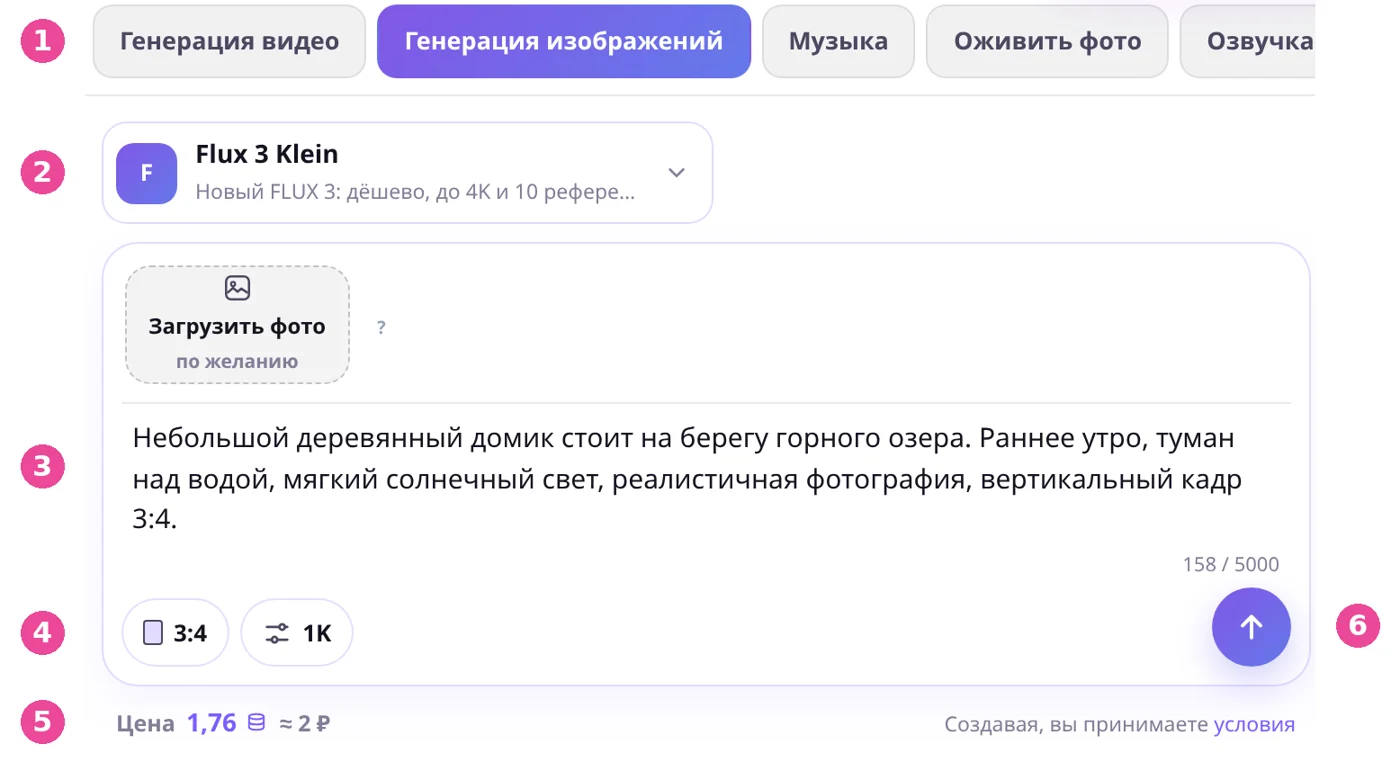
For your first attempt:
- Open the image editor and select Flux 3 Klein.
- Use the prompt from the hands-on exercise and set the aspect ratio to vertical 3:4.
- Check the cost and start generation.
Your first AI image: a cabin by a lake
A small wooden cabin stands on the shore of a mountain lake. In the foreground, calm water reflects the cabin, with a pine forest and mountains in the background. Early morning, a thin layer of mist over the water, soft sunlight. Realistic photography, natural colors, vertical 3:4 aspect ratio. No people or text.

With basic settings, one Flux 3 Klein image costs 1.76 credits.
Once the image is generated, check whether it includes the cabin, lake, mountains, and morning mist.
If the cabin looks too small, you can refine the prompt: “The cabin is clearly visible in the foreground.”
Generating again creates a new variation and usually costs additional credits.
One attempt is enough to get started. We'll cover models, photo uploads, image resolution, and fixing unwanted results in “How to generate AI photos from text or your own pictures”.
For more control over lighting and composition, see “AI photo prompts: ready-to-use examples and tips”. If you'd rather not write your own description, explore the ready-made templates.
Can you use AI for free?
You don't need a paid subscription to try AI for the first time.
Some services offer free chats, trial limits, or bonus credits. Before choosing a service, check its available features, usage limits, and payment terms.
Get started for free with Neuromia
Mia AI chat is free. You can ask questions, prepare drafts, practice writing prompts, and complete text-based exercises.
After signing up for Neuromia, you'll receive 10 bonus credits to try image generation and other paid tools.
For example, one Flux 3 Klein image costs 1.76 credits. If you spend the entire bonus on images at that price, you'll have enough for five attempts.
Once your bonus credits run out, you can purchase a credit package. The smallest package costs 99 ₽ (payments are in Russian rubles). Always check the price for your selected model and settings before generating.
If a generation fails due to a technical error, reserved credits are automatically refunded. If an image is generated successfully but you don't like the result, the credits spent won't be refunded.
Do you need any special setup or payment method?
You can access Neuromia through a regular web browser without installing additional software.
Payment methods and access restrictions may vary by service and country. Check the current options available in your region.
Can you use AI on your phone?
Yes. Open Neuromia in a browser on your Android phone or iPhone.
You only need your phone's keyboard to use the chat. If you want to edit a photo, you can upload one from your phone's storage.
An Android app is also available through RuStore.
You don't need any special technical vocabulary to get started. Write prompts in your preferred language. If the model responds in a different language, ask it to continue in yours.
Why does AI make mistakes?
Sometimes AI confidently gives an incorrect date, invents a source, or makes a calculation error.
These mistakes are called AI hallucinations.
Suppose you ask AI to find scientific publications about how trees affect well-being.
The model recommends a 2018 paper titled “Urban Trees and Memory” by A. Lawson.
This is a fictional example created for the lesson. You can't assume a publication exists just because AI provides a title, author, and year.
To verify a response like this, search for the publication in an academic database or on the publisher's website. Then open the original source and check whether it actually supports the claim.
If you can't find independent confirmation, don't use the source as evidence.
Asking “Are you absolutely sure?” doesn't replace independent verification.
In the dedicated lesson “AI hallucinations: why AI makes mistakes and how to check”, you'll learn a five-step process for verifying sources, numbers, and conclusions.
AI safety: what information should you never upload?
Before sending a message, photo, or document to an AI service, check whether it contains sensitive information.
Never share passwords, verification codes, bank card details, or access keys.
Don't upload confidential work documents or other people's personal information without the necessary permissions. If you want AI to edit a client's email, remove names, contact details, and any other information the task doesn't require.
Use fictional situations and information for practice exercises.
When working with photos, respect the rights and consent of the people pictured.
Don't use AI-generated portraits as substitutes for authentic photos in official documents.
How AI services handle your data
The service you choose processes the text, files, and photos you submit. Data retention, access policies, and whether information may be used to improve models vary between services.
Before uploading work documents, review the service's privacy policy and settings.
Even if you tell AI “don't remember this information,” that instruction alone doesn't change how the service processes your data.
If a few anonymized lines are enough to complete your task, don't upload the entire document.
Practice and knowledge check
You've completed two exercises: getting a response in an AI chat and generating your first image.
Now try completing a task of your own without a ready-made prompt.
Independent exercise
You've completed the exercise when you have your original prompt, the first response, and an improved result.
You don't need a flawless answer. You just need to understand what you changed and why the result became more useful.
Lesson checklist
Test your knowledge
For each of the four scenarios, choose the action that will help you complete the task most effectively.
The questions cover choosing the right tool, refining prompts, verifying sources, and protecting personal information.
If you get a question wrong, return to the relevant example and try to explain why another option works better.
The main learning outcome isn't memorizing model names. It's knowing how to define a task, verify an AI response, and correct it when necessary.
What to learn next
You've completed your first full AI workflow: defined a task, written a prompt, received a result, verified it, and made improvements.
In the next lesson, “How to write AI prompts: a step-by-step guide”, you'll learn to write more precise instructions, add context and constraints, use examples, and build more complex prompts.
Then, in “How to write and edit text with AI”, you'll apply these skills to emails, social media posts, articles, and editing existing content.
After the writing lessons, the course moves on to fact-checking, spreadsheets, presentations, and images.
For visual projects, there are lessons on “How to generate AI photos from text or your own pictures”, “AI photo prompts: ready-to-use examples and tips”, and “How to create an AI photoshoot with your own face”.
The full sequence is available in the course curriculum.
Save one successful prompt from today's exercises along with its result. You can use it for comparison in future lessons.
Frequently asked questions
Do I need programming skills to use AI?
No. For questions, writing, images, and most everyday tasks, plain language is enough.
Programming skills are useful for specialized tasks, such as building applications or integrating AI models through APIs.
Can I learn to use AI on my own?
Yes. Start with a simple task in a text-based AI chat, then refine the response and fix an error you've identified.
Explore other tools as you need them. The Neuromia course progresses from basic skills to more advanced topics.
What's the best AI for beginners?
There's no single best option.
A conversational AI assistant works well for questions and writing. An image generator is better suited to creating images, while a music model is designed for generating music.
Start with an accessible tool that handles your task and has an interface you can understand.
Do I need to write prompts in English?
No. Many modern AI models understand multiple languages.
If a particular generator doesn't follow instructions well in your language, try an English version. But you don't need to translate your prompts just to get started.
Can I use AI without creating an account?
That depends on the service and the feature you want to use.
In Neuromia, you can open and explore the image editor before registering. You'll need an account to start generating images. After signing up, you'll receive 10 bonus credits.
Why does AI give different answers to the same question?
Results depend on the model, its settings, the conversation context, and randomness in the generation process.
Identical prompts don't always produce identical responses. To verify facts, rely on independent sources rather than how many times AI gives the same answer.
Can I use AI-generated content for work?
In many cases, yes. However, the rules depend on the service, model, and source materials.
Check the facts, commercial usage terms, and rights associated with any documents, photos, or other materials you upload.
AI-generated content isn't automatically free from all legal restrictions.